Lock dashboards to keep shared reporting consistent

With Dashboard Locking, you can keep important reporting available to your organization while controlling who can change it. Lock a dashboard’s configuration, assign specific editors, and decide whether other viewers can copy the dashboard or manage its scheduled deliveries.
Dashboards are often meant to be viewed broadly but maintained by a smaller group. Until now, users who could create dashboards could also modify any dashboard they had access to. That made it easy for someone to unintentionally change a standardized layout or filter configuration.
Teams could previously also create their own copies of a shared dashboard, resulting in multiple slightly different versions that became harder to maintain over time.
Protect the dashboard’s layout, content, and filters
When a dashboard is locked, users without editor access cannot modify its:
- Layout
- Dashboard content
- Dashboard-level filter configuration
This lets Recruiting Operations and analytics teams share standardized reporting without relying on everyone to avoid changing it.
Locking does not make a dashboard private. You can still decide separately whether the dashboard is public to your organization or restricted to specific users.
Choose who can view and edit a locked dashboard
The updated Dashboard Access settings separate who can open a dashboard from who can change it.
For a public, locked dashboard, anyone with access can view the dashboard, but only assigned editors can modify it.
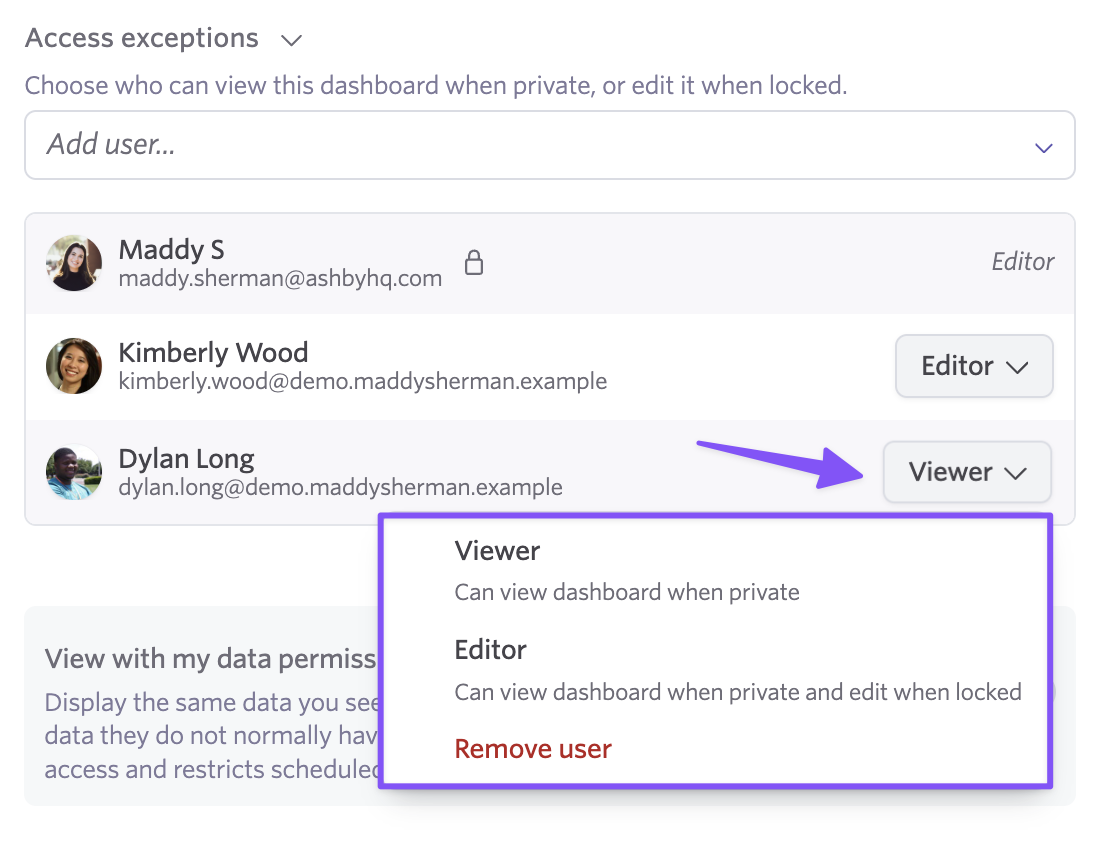
For a private, locked dashboard, you can add each person as either:
- Viewer: Can access the private dashboard but cannot change its configuration
- Editor: Can access the dashboard and manage its permissions, layout, content, and other settings
This gives teams shared ownership without opening the dashboard to edits from every viewer.
Control copying and scheduled deliveries separately
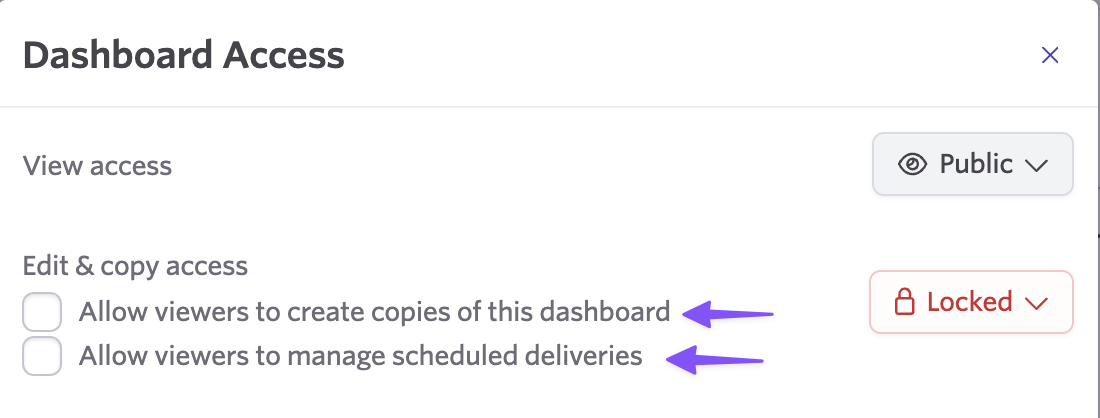
Locking a dashboard gives you two additional controls for non-editor viewers:
- Allow viewers to create copies: Let viewers create their own version of the dashboard
- Allow viewers to manage scheduled deliveries: Let viewers create and manage scheduled deliveries for the dashboard
Both are off by default when a dashboard is locked. Editors can continue managing the dashboard and its scheduled deliveries.
This means you can prevent duplicate dashboards while still allowing people to subscribe themselves or their teams to the standardized version.
Manage dashboard access from one place
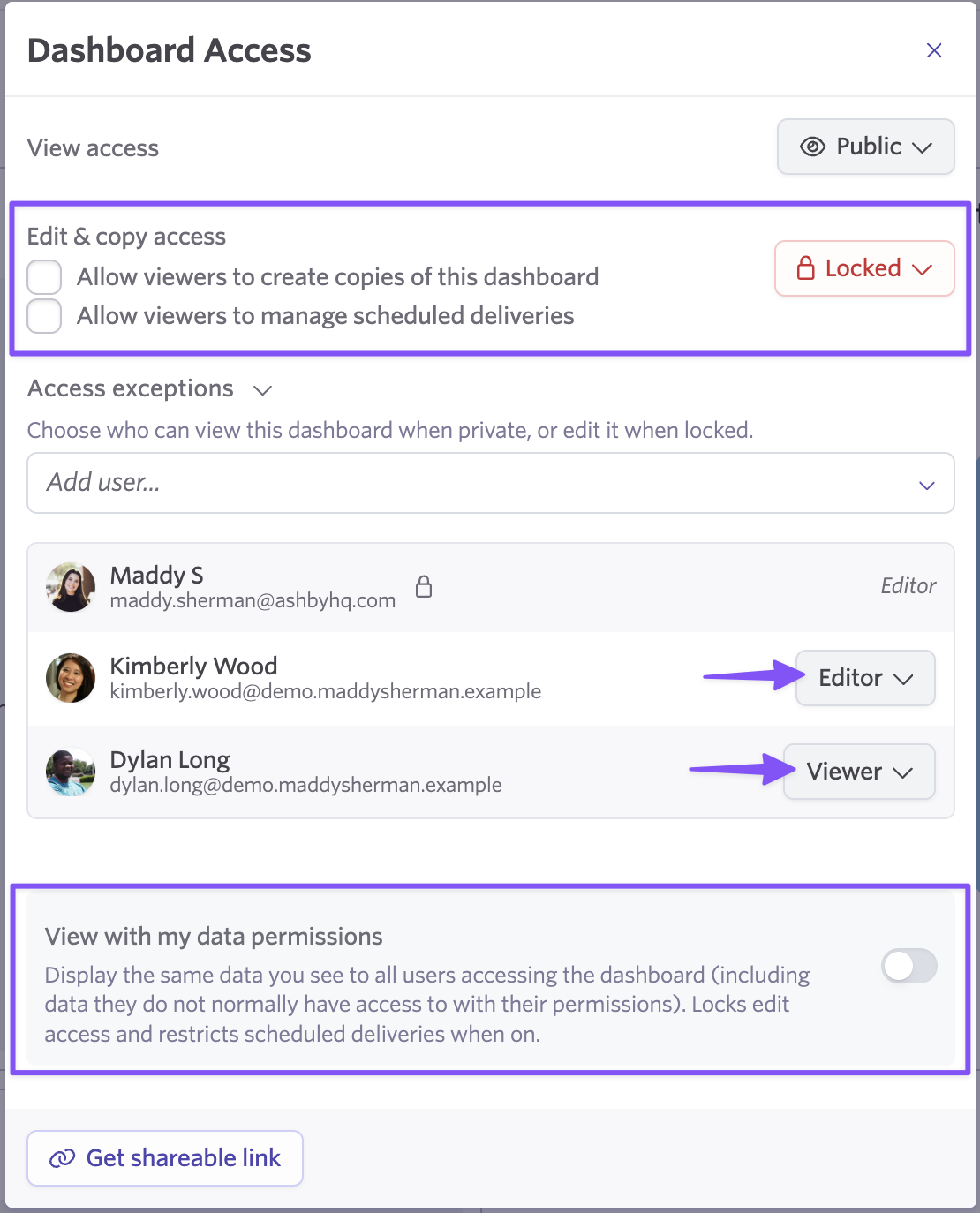
The expanded Dashboard Access modal now brings the dashboard’s primary sharing and governance controls together.
From the same place, you can:
- Make a dashboard public or private
- Lock or unlock its configuration
- Add viewers and editors
- Decide whether viewers can copy it
- Decide whether viewers can manage scheduled deliveries
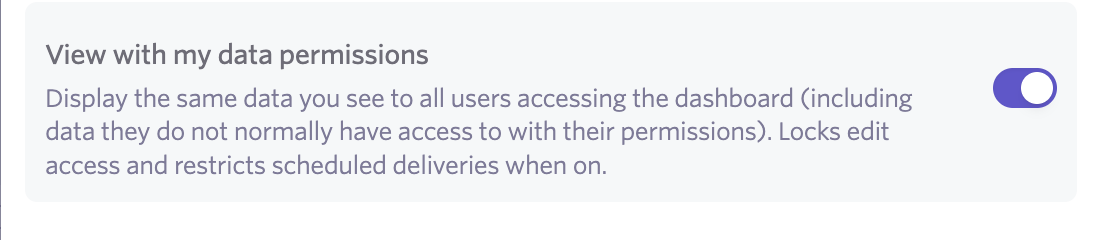
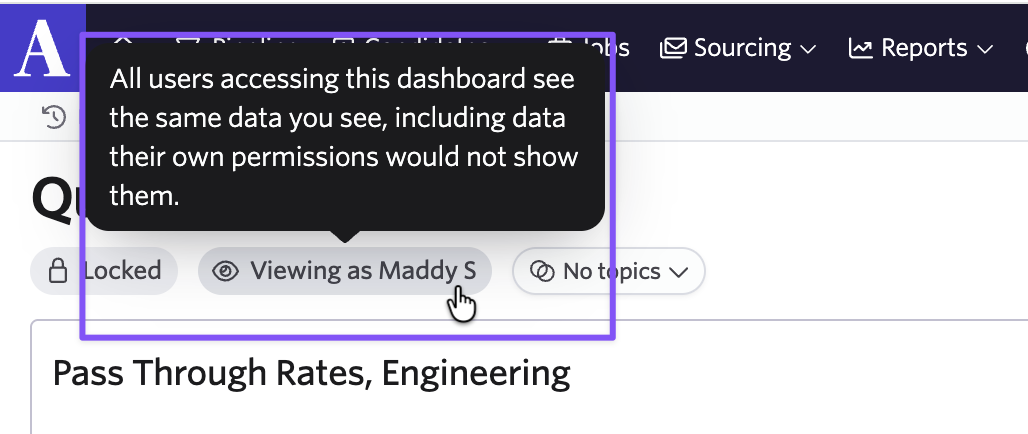
- Configure the existing option for showing dashboard data using a specific user’s permissions
- Copy the dashboard URL
The existing shared-permissions view setting, previously presented as “Share My View,” now includes clearer descriptions within the access flow.
When a dashboard does not have privacy restrictions or locking enabled, the Access Exceptions section stays collapsed to keep the settings focused.
Find and manage locked dashboards
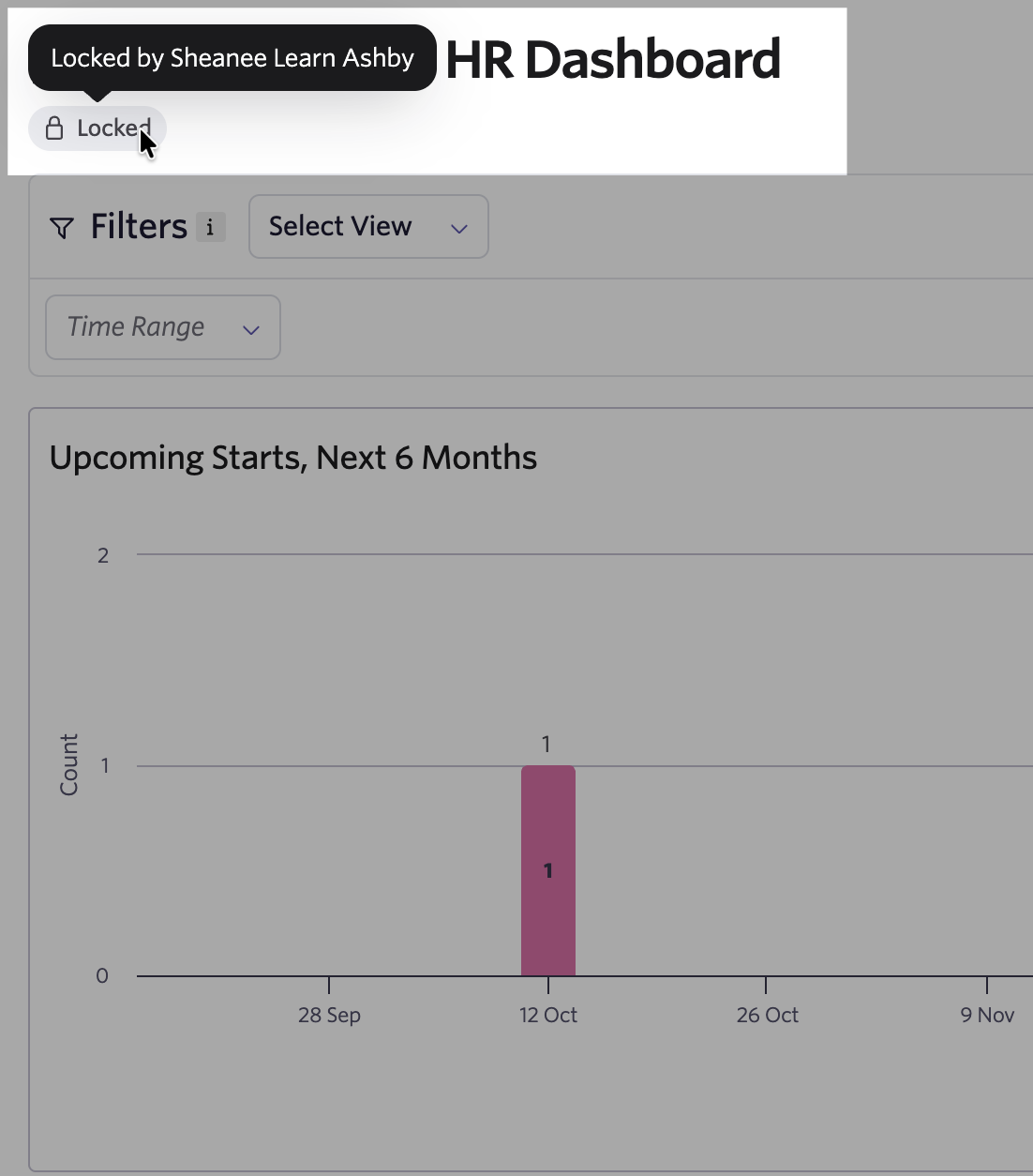
A locked dashboard shows who locked it directly in the dashboard view. Selecting the locked status opens its access settings, for those with permissions.
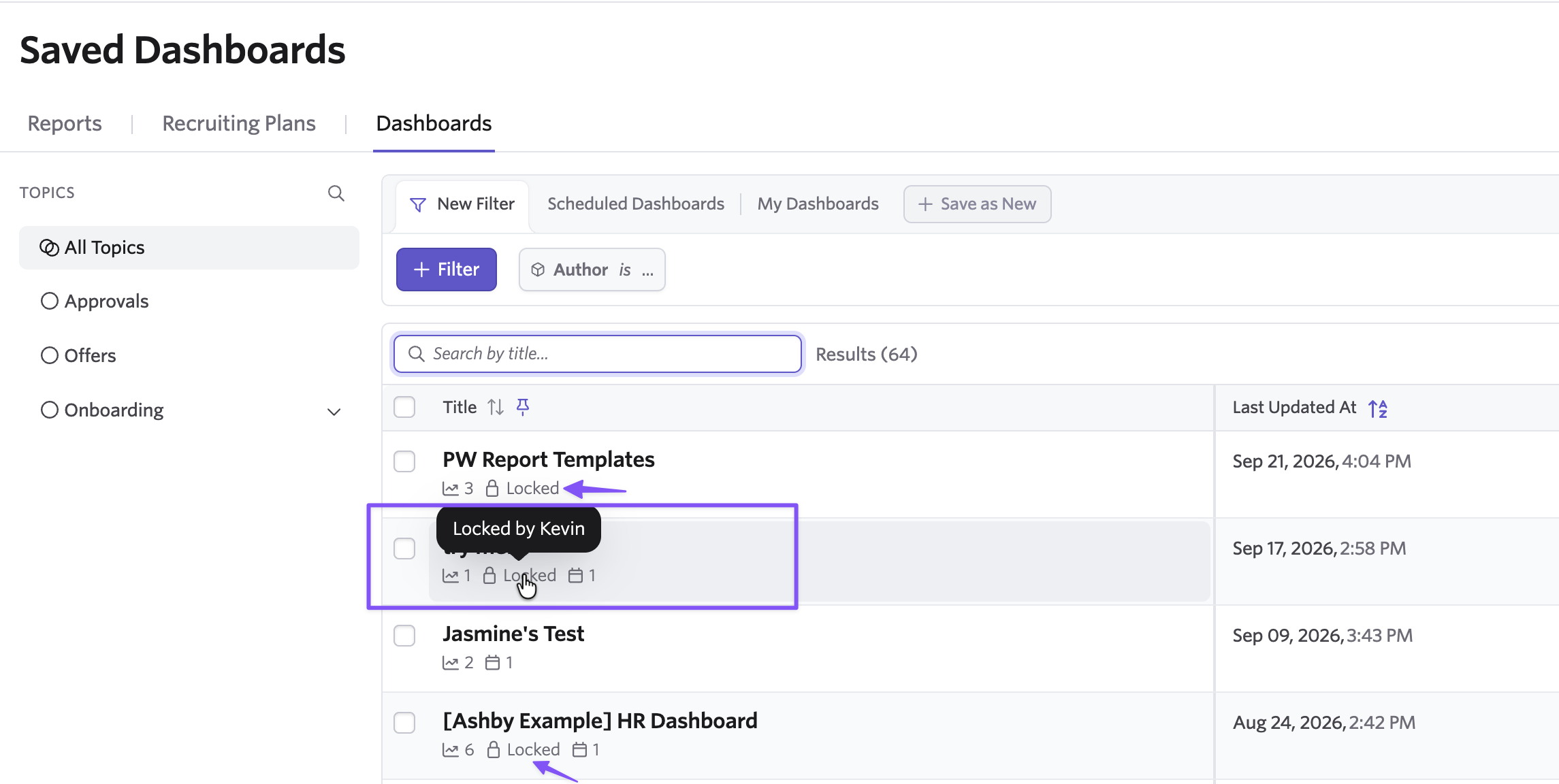
Locked dashboards also display an indicator in the Saved Dashboards list. Advanced filters let administrators and analytics teams find dashboards based on whether they are:
- Access restricted
- Locked
- Copy restricted
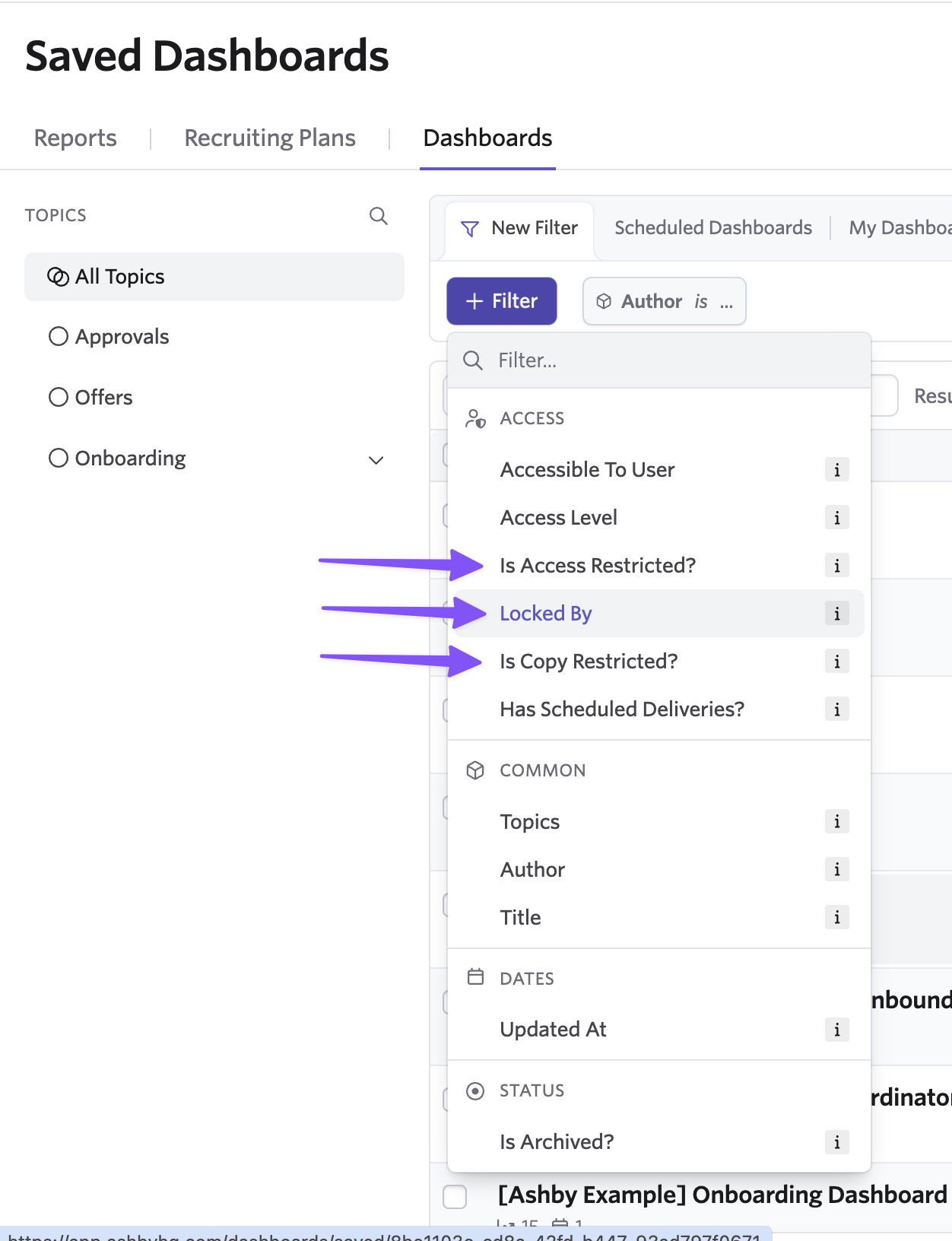
This makes it easier to review governed reporting content across the organization.
Give trusted administrators an override
A new employee permission lets designated users unlock dashboards and manage their access, even when they are not already an assigned editor.
This gives organizations a recovery path when the person who originally managed a dashboard changes roles or leaves the company.
Lock underlying reports separately
Dashboard Locking protects the dashboard’s configuration. It does not prevent someone from opening and modifying an underlying report if they otherwise have permission to edit that report.
To protect both layers of your reporting:
- Lock the dashboard to protect its layout, included content, and dashboard filters.
- Lock the underlying reports separately to protect their report configurations.
Availability
Dashboard Locking is available on all plans. Visit our help article for more details.