Sync and map to your Docusign custom fields

Today, we're releasing custom field mapping for the Docusign integration, giving you a way to set default values for your Docusign custom fields directly from Ashby so they're included on every e-signature request you send.
Set default field values, or update values directly on individual requests before sending
From the Docusign integration settings in Ashby, you'll see a new section listing the custom fields configured in your Docusign account. For each field, you can set a default value that will be sent automatically with every e-signature request, or configure it so it will be filled one each request.
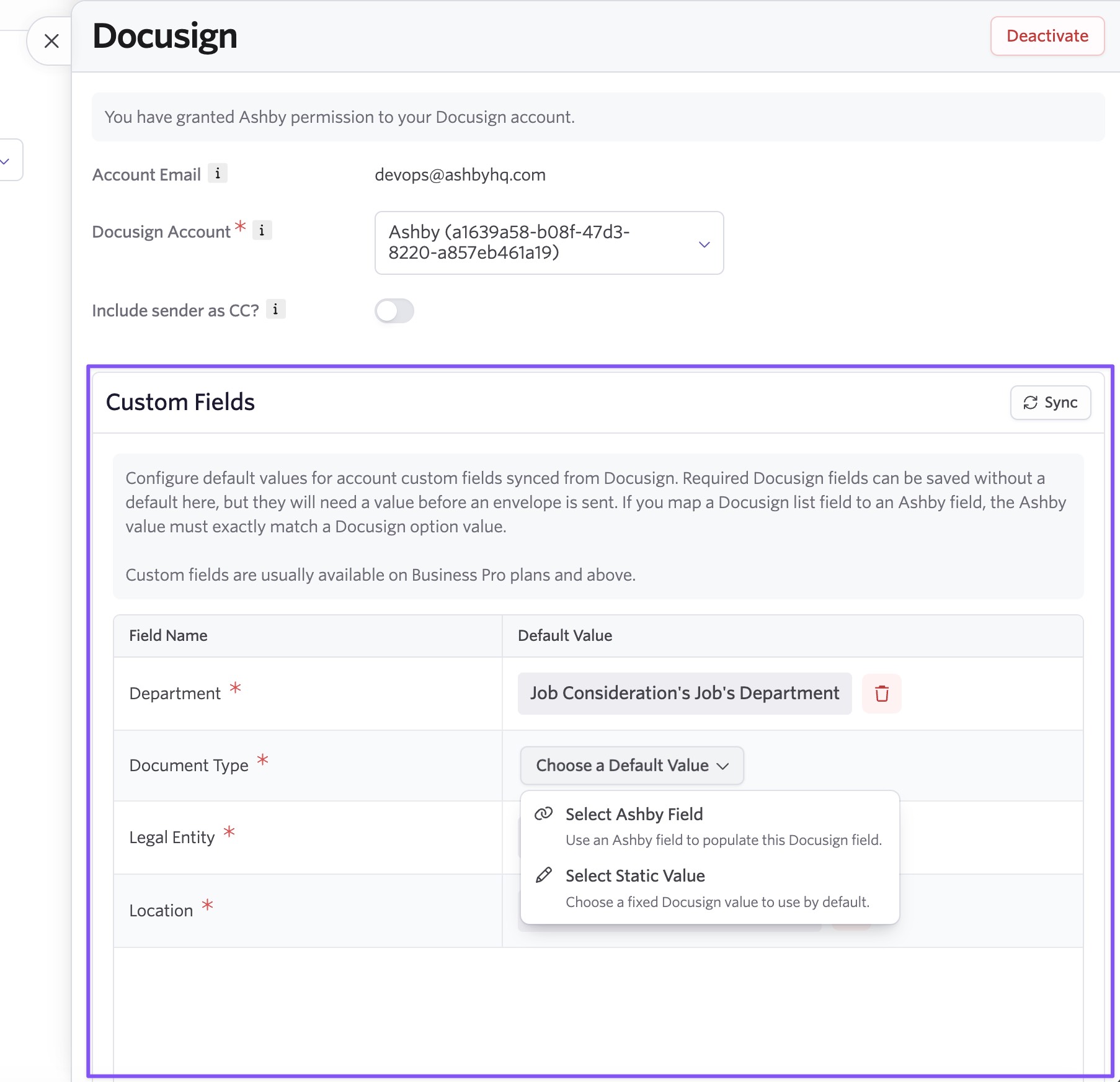
Two custom field mapping options
- Select an Ashby Field: Map the value to an Ashby field on the application, so it populates dynamically based on the candidate or role.
- Select a Static Value: Choose a fixed Docusign value from your predefined Docusign options.
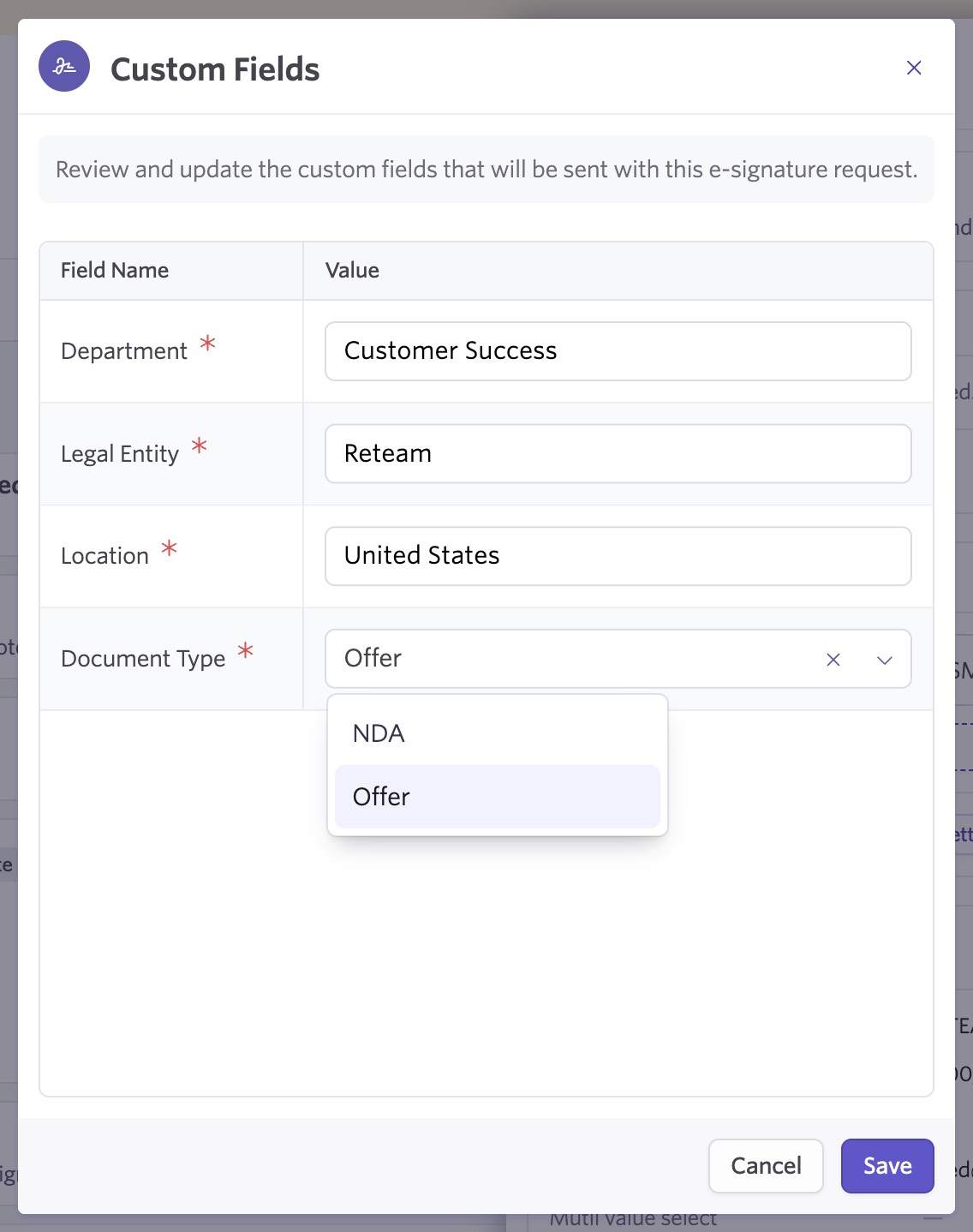
You can also update custom field values directly on individual e-signature requests before sending. On an e-signature request, next to Powered by Docusign, click the three dots, and select Custom Fields to find and edit the Docusign field values.
If a required field doesn't have a default set and hasn't been filled in, the Send E-signature Request button will be blocked with a message letting you know what's needed before you can proceed.
Staying in sync with your Docusign account
Your custom fields are pulled from Docusign automatically on a daily sync and are also refreshable on demand using the Sync button in the integration settings. If a field is removed from your Docusign account, it will be deleted in Ashby on the next sync so your mapping configuration stays accurate.
Custom field mapping for Docusign is available to all customers. To configure it, go to Admin → Integrations → Docusign and look for the Custom Fields section.