Organize candidate files with categories to quickly find documents

You can now create and assign categories (with optional automation) to uploaded files on the candidate profile.
When candidates have multiple documents, like cover letters, transcripts, and work samples, it helps to have a structured way to organize and identify them beyond just the filename.
How file categories work
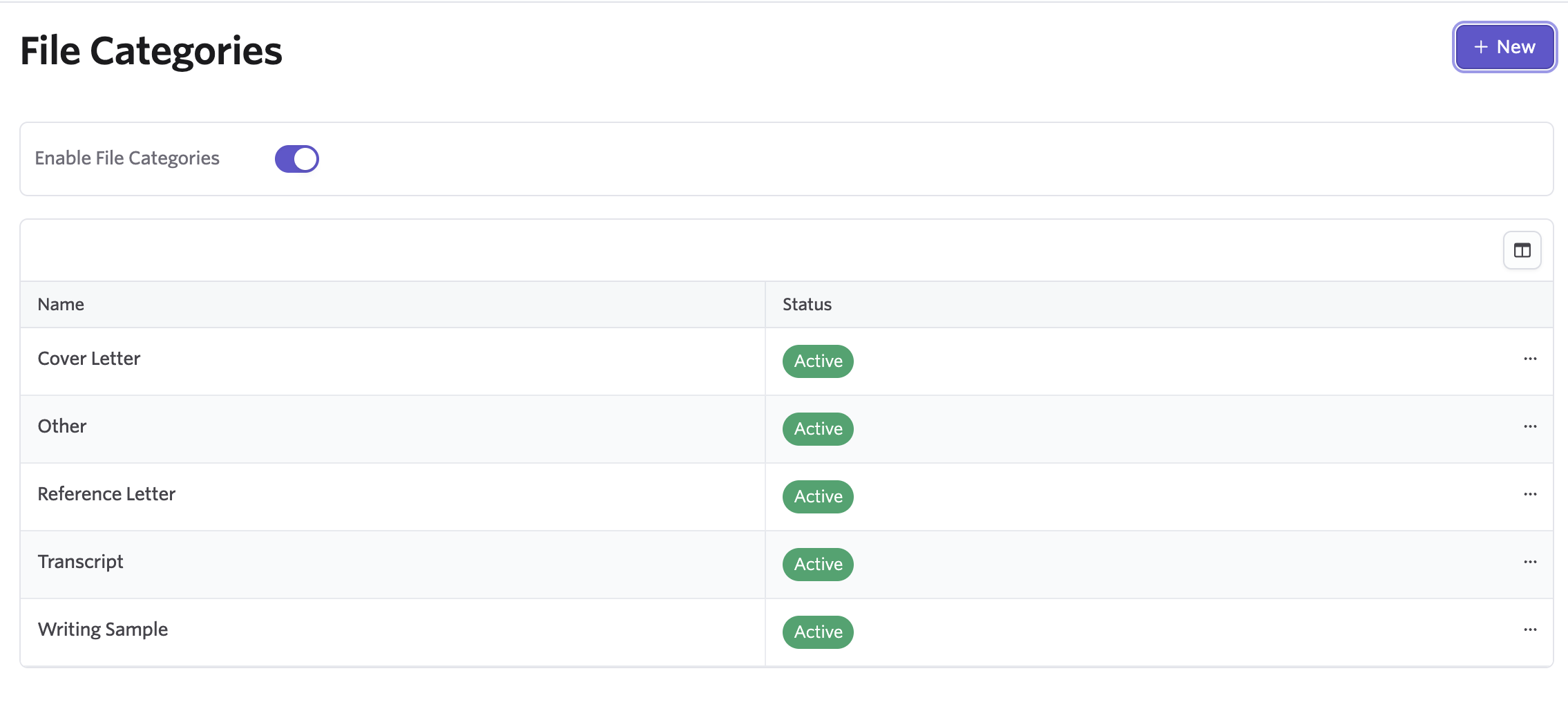
Enable file categories in your admin settings to get started. Once enabled, you'll see a set of preloaded categories (cover letter, transcript, etc.) that you can rename, archive, or add to.
When uploading or editing files on a candidate profile, you can now:

- Assign a file category
- Add an optional description for additional context
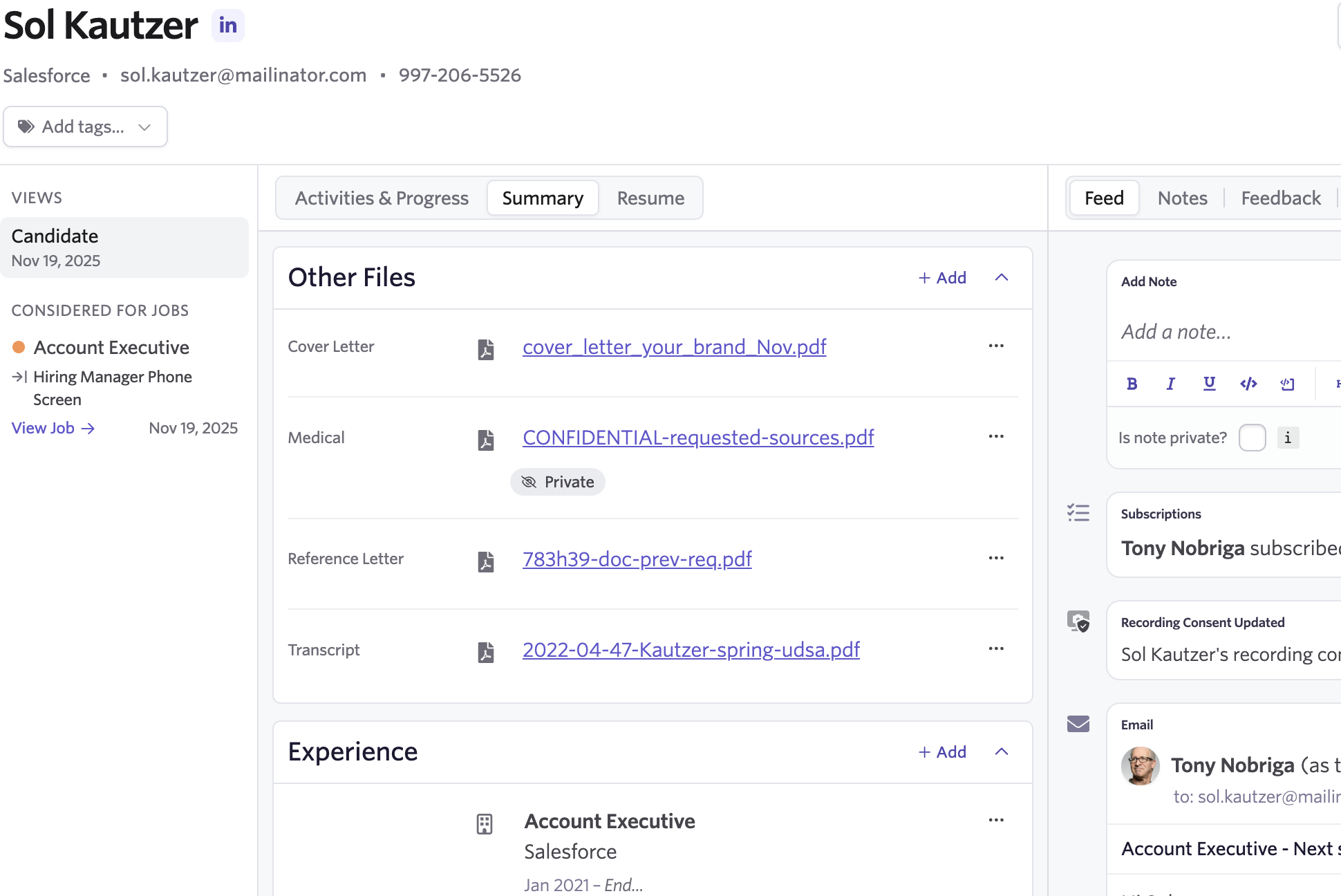
- Set as Public to anyone with access to the candidate profile or Private (Org admins, Elevated Access or relevant Admin Private Access)
Files are then grouped by category on the candidate profile. Existing files will appear under "Uncategorized" until you assign them.
Auto-upload from application forms
For file upload fields in application forms, you can now choose to automatically save that file with an optional category mapping.
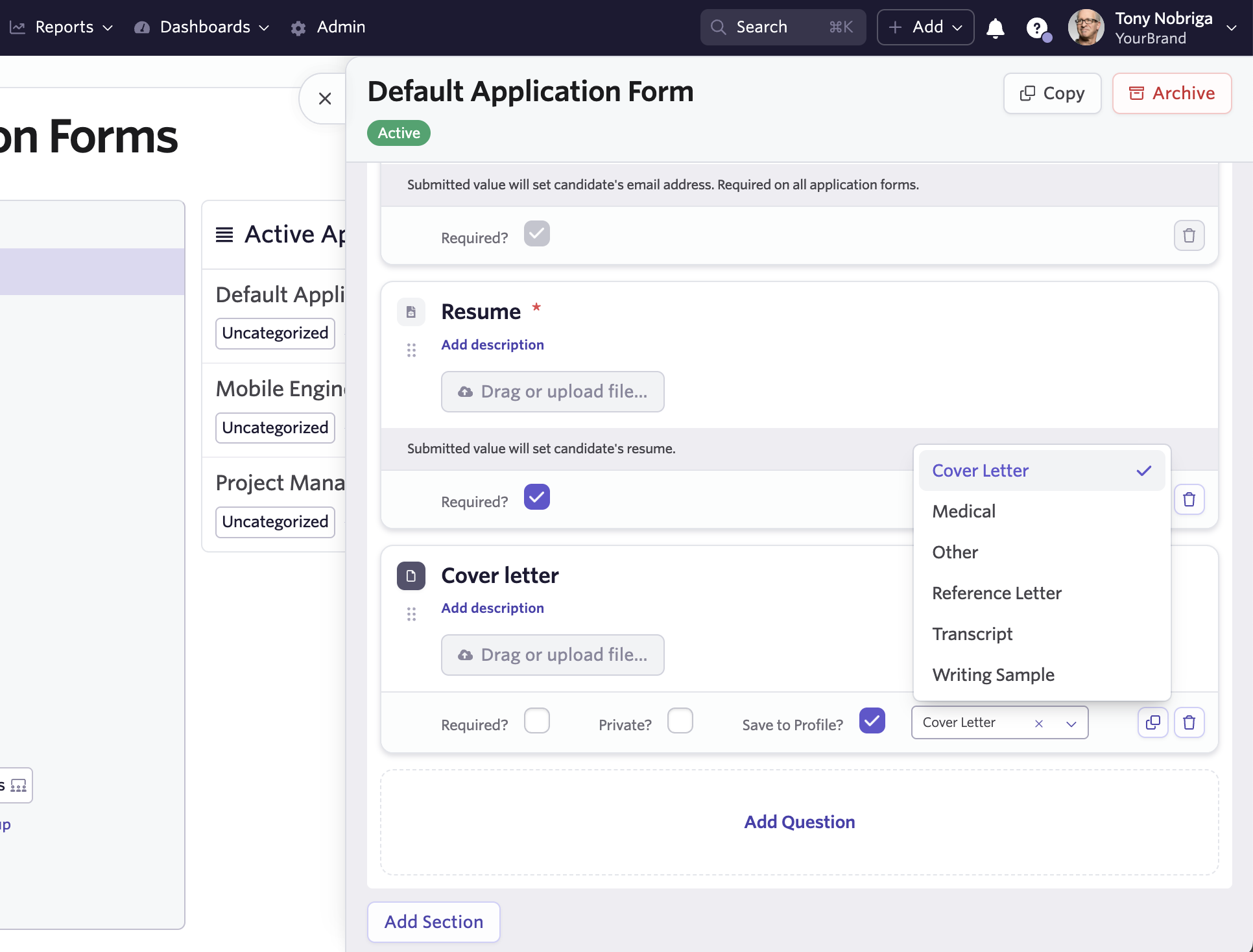
When a candidate submits their cover letter, for example, it's automatically saved to their profile under the cover letter category.
With candidate file categories you now have a low-overhead system for organizing and providing clarity to files attached to your candidates. Application form automation means files are categorized from the start without any manual work.
Getting started
Head to admin settings > File Categories to enable candidate file categories and manage your organization's category list. Once enabled, categories appear on file uploads across candidate profiles and application form settings. You can learn more about candidate file categories here.