Automated Candidate Scheduling Reminders to drive faster bookings

With Candidate Scheduling Reminders, Ashby automatically follows up with candidates who haven’t completed a Candidate Availability request or scheduled through a Direct Booking link within your chosen timeframe. This helps teams keep scheduling on track without relying on personal reminders or manual follow-up.
Configuring reminders
Choose your preferred timing and frequency for scheduling reminders, and Ashby handles the tracking and communication. You can configure one or more automated reminders to be sent minutes, hours, or days after a Direct Booking link or Availability Request is sent.
Reminders are sent via email or SMS, giving you flexibility in how you reach candidates and encouraging faster booking based on your scheduling goals.
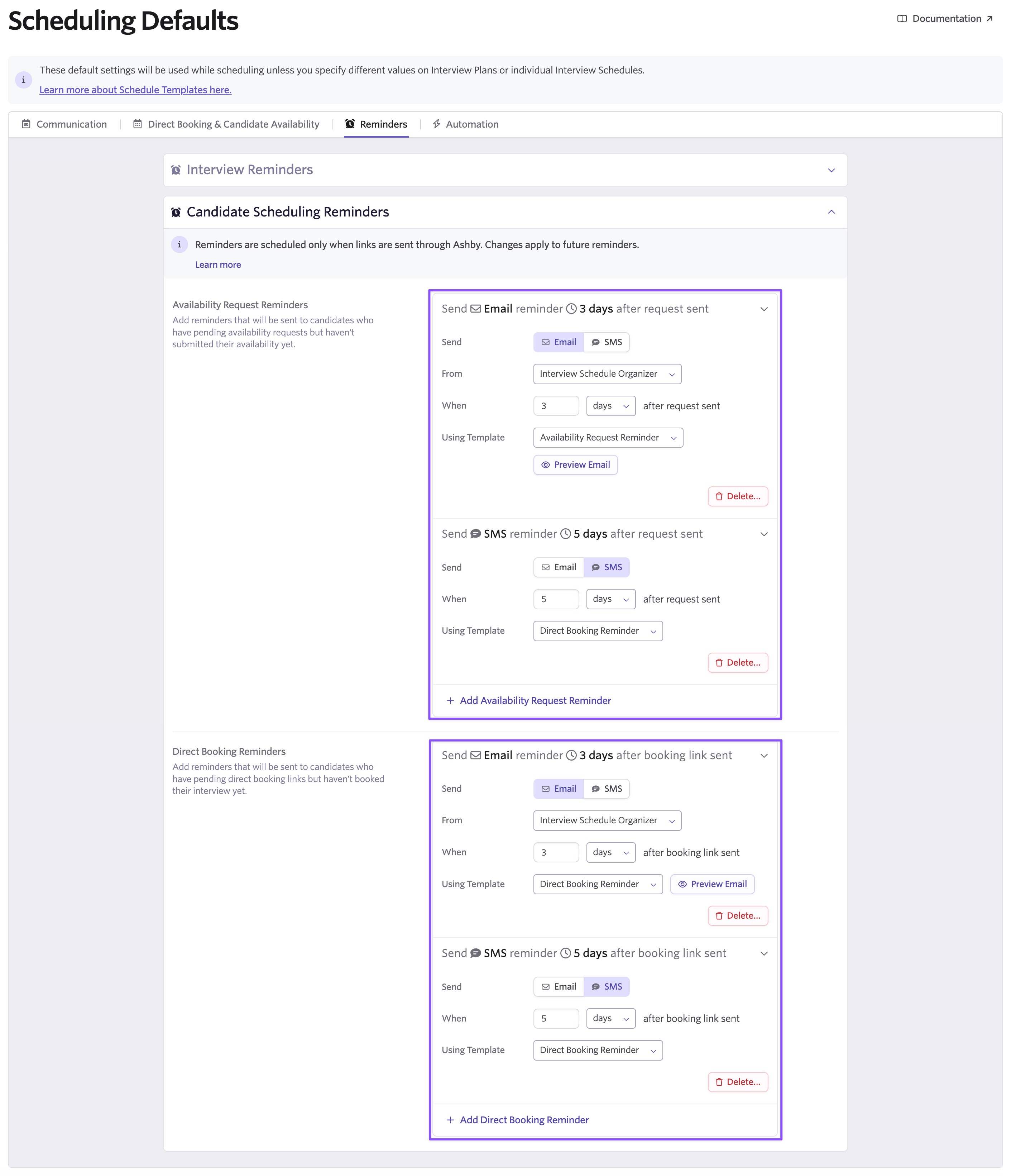
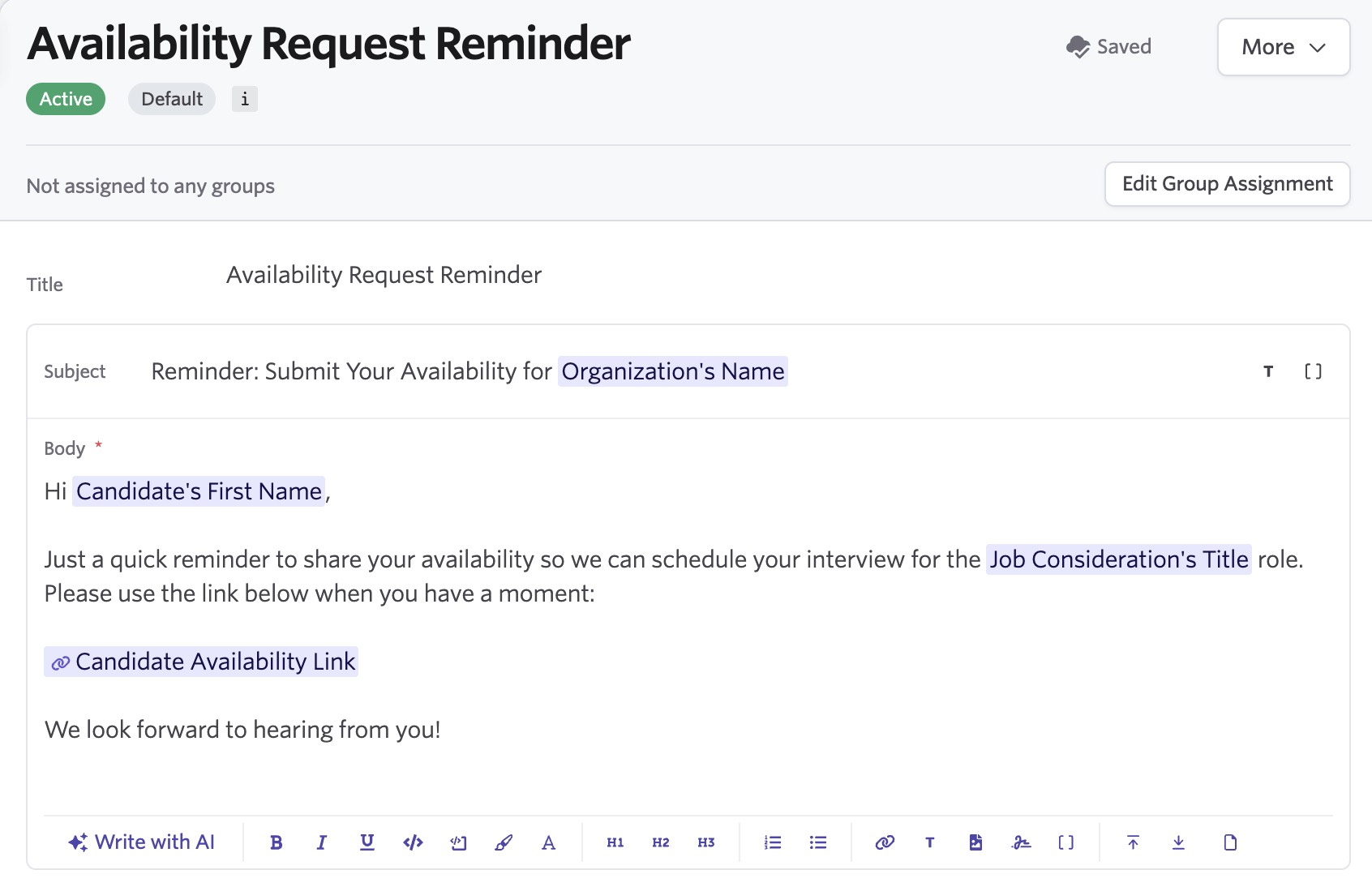
You'll also find two new default email templates: one for Availability Request reminders and one for Direct Booking reminders. Use them as is, customize them to match your team’s voice, create a new template from scratch, or reuse an existing template.
Here’s an example of the default Availability Request reminder template:
For reminders to work, scheduling requests and Direct Booking links must be sent through Ashby. This helps teams keep scheduling on track without relying on personal reminders or manual follow-up.
Setting up reminder defaults
Reminders can be set in your Admin Scheduling Defaults to apply across the organization, or configured on individual Schedule Templates for more targeted control, following the same setup steps as interview reminders.
View sent and future reminders in one place
Your team can see exactly where a candidate is in their reminder sequence, including any upcoming scheduled reminders, directly from the candidate’s scheduling activity.
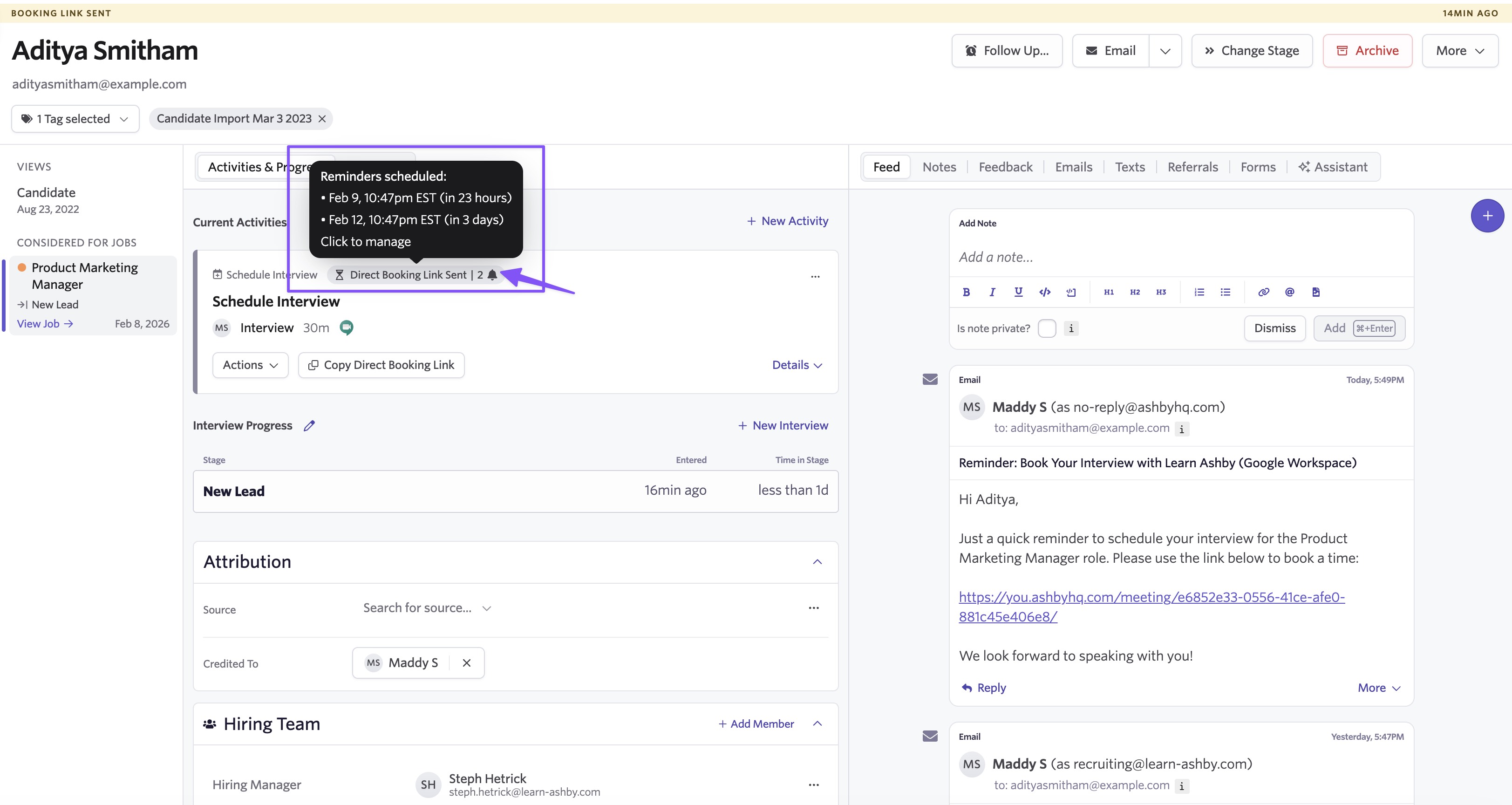
From this view, you can manage and cancel individual reminders by clicking into the reminder preview. Your reminders appear next to your candidate communications, making it easy to review and adjust them when new information arrives via email or during the interview process.
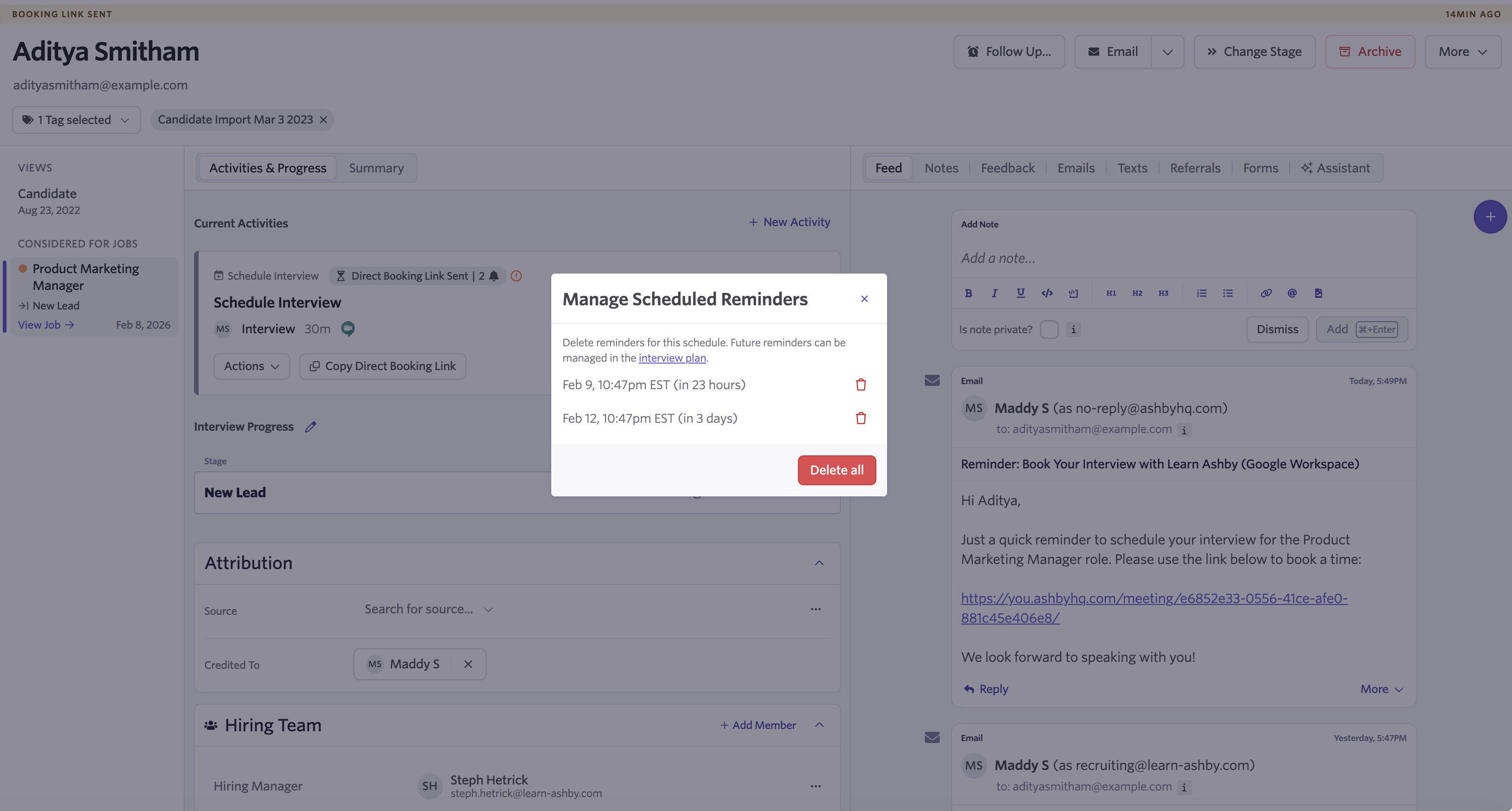
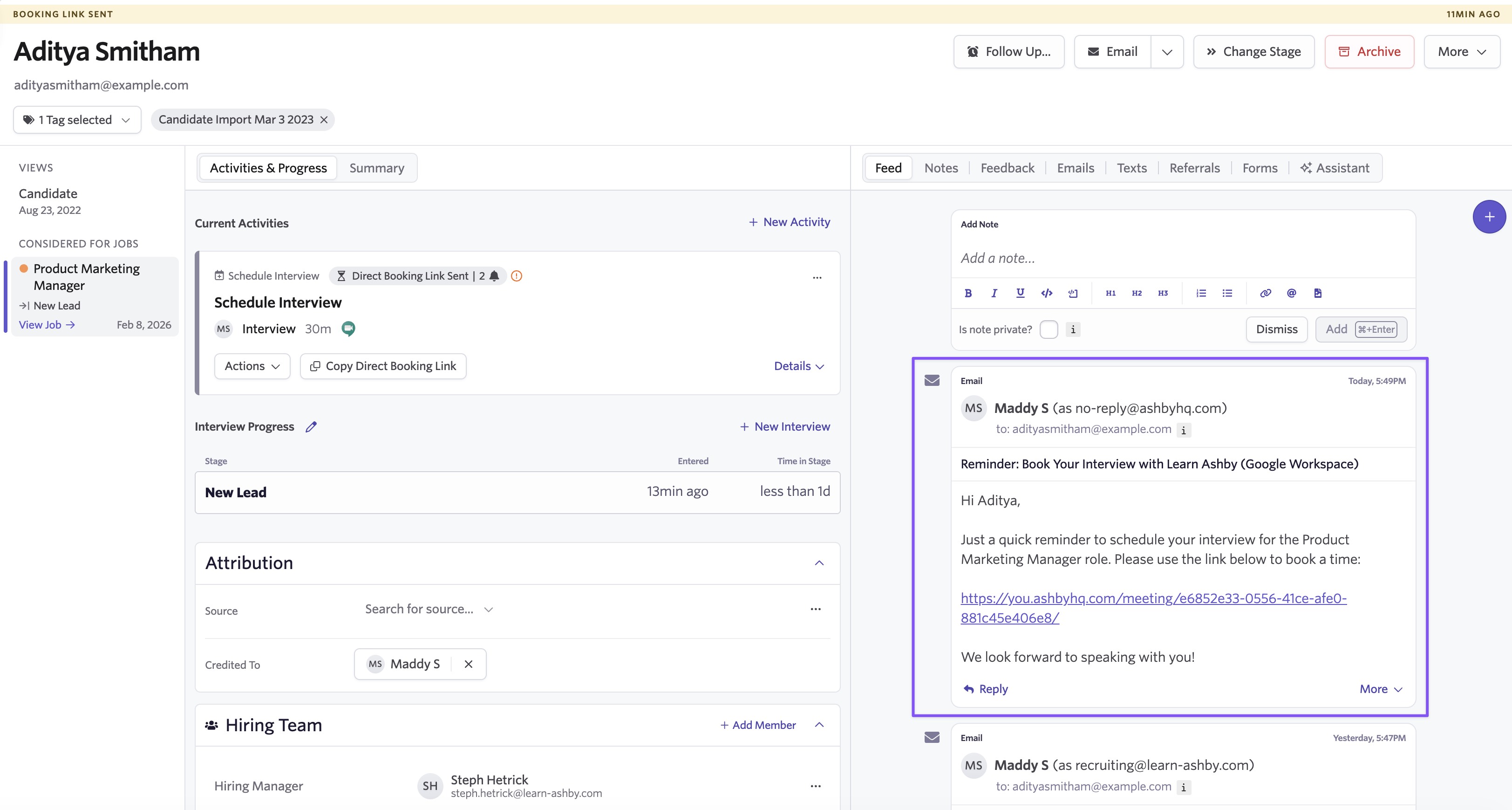
Sent reminders also appear in the candidate activity feed, giving your team full visibility into what was communicated and when.
- The candidate books an interview
- Availability is submitted
- The schedule is canceled
- The candidate moves to a different stage
Getting started
Automated candidate scheduling reminders are available across all plans. Get started by visiting your Scheduling Defaults or any individual Schedule Template and opening the Reminders tab. For step-by-step guidance, visit our Ashby Knowledge Base.