Collect text input in E-signature documents using substitution tokens

You can now add text input fields directly to your E-signature templates using substitution tokens. Configure them once, and every generated document includes the input fields automatically.
When sending offers or E-signature documents like NDAs, you may need to collect candidate input beyond their signature - things like IP disclosures, invention assignments, or other acknowledgments.
Configuring tokens
From any E-signature or offer letter template, you'll find two new tokens in the E-Signature Document section.
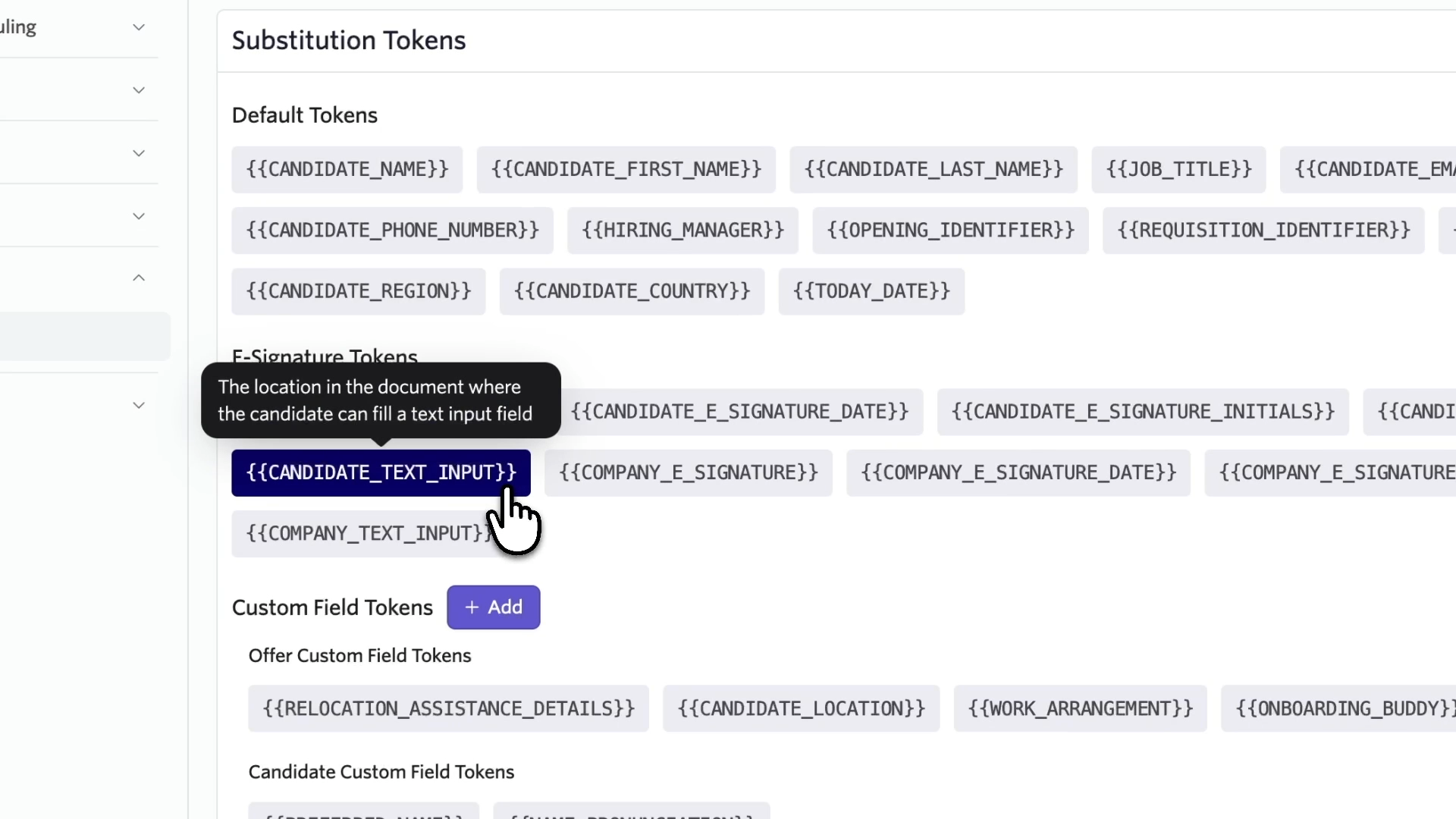
{{CANDIDATE_TEXT_INPUT}}{{COMPANY_TEXT_INPUT}}
Click either token to pull open an editor that helps you configure the size of the textbox.
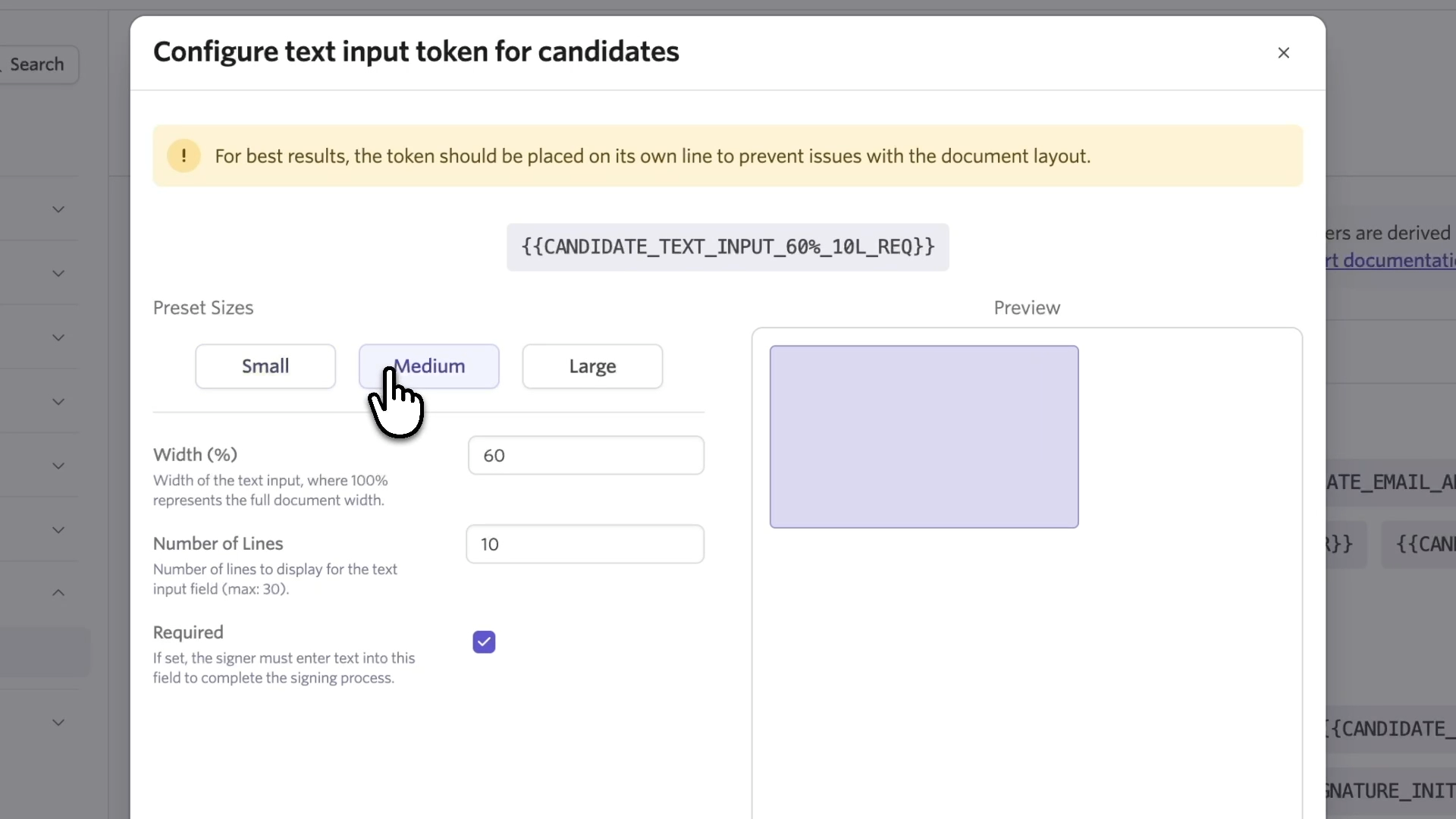
- Presets: Choose small, medium, or large. A preview on the right shows how the field will render in your document.
- Custom dimensions: Set a specific width and number of lines if the presets don't fit your needs.
Copy the token and place it in your template where you want the input field to appear.
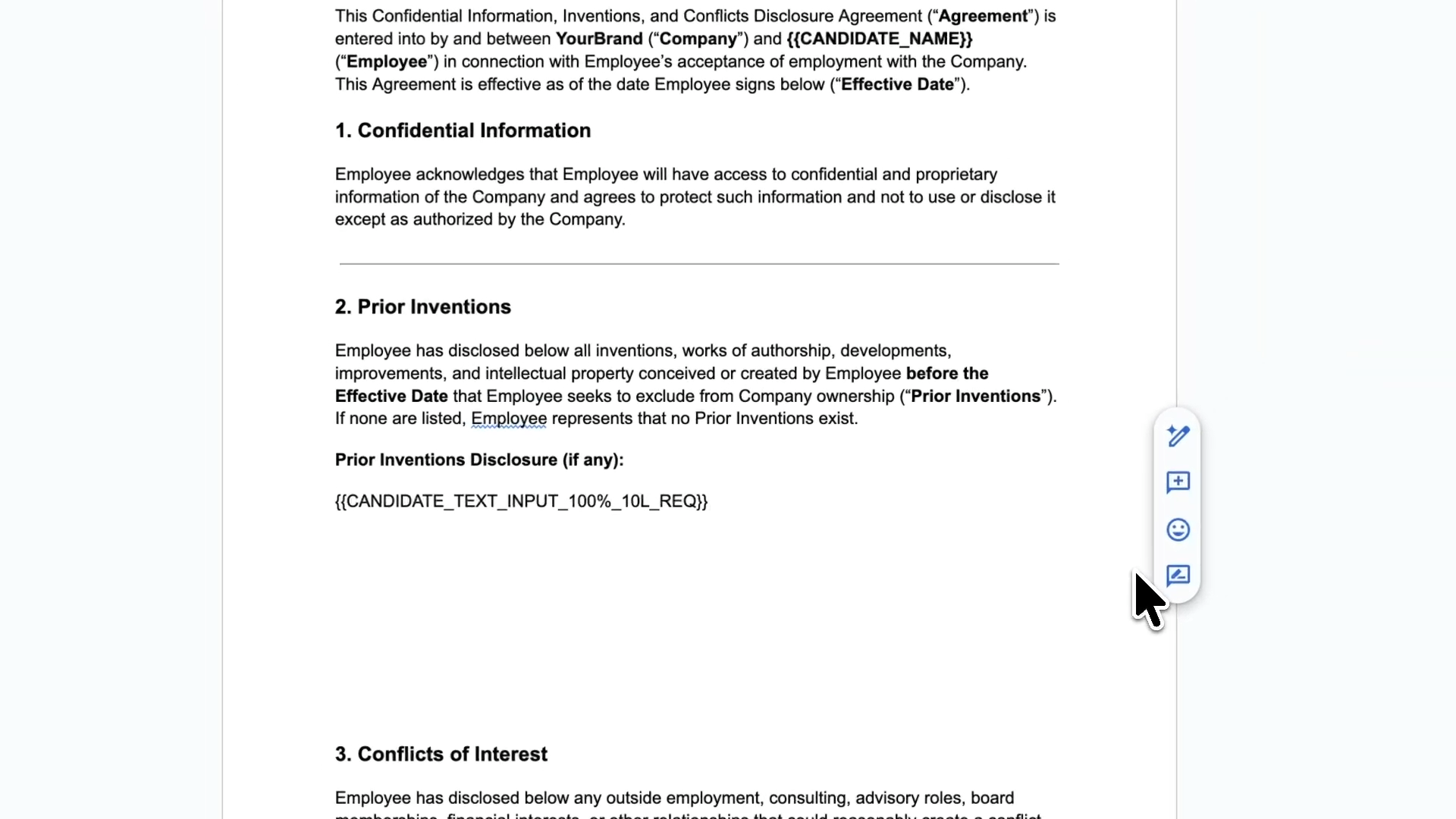
For multi-line inputs, leave a few extra lines of space in your template so the rendered field doesn't overlap with the text below it.
What candidates see
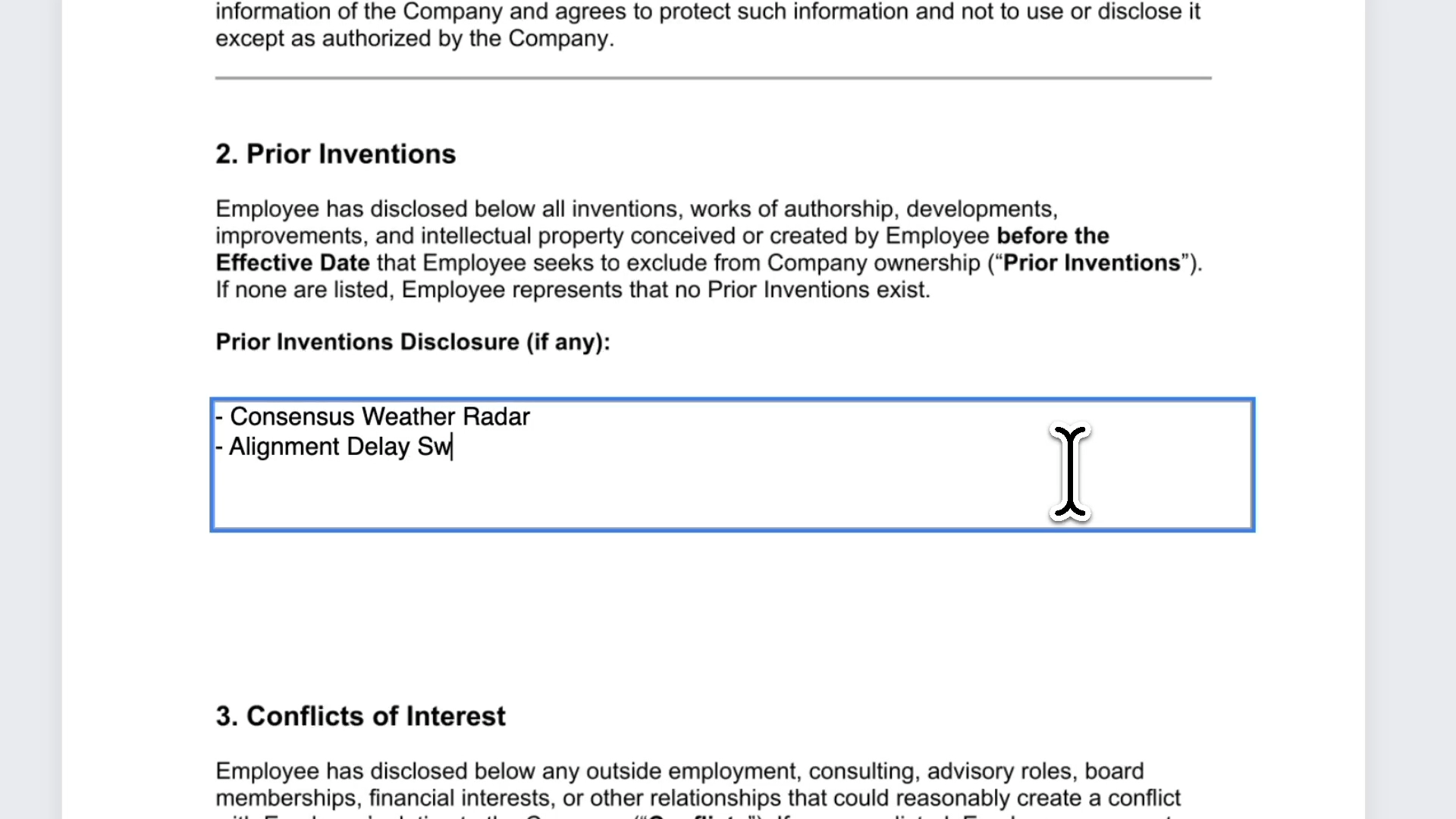
When you generate a document, the tokens automatically convert to fillable text fields.
Candidates see these input fields alongside the signature fields when they open the document, and complete them as part of the normal signing experience.
For teams managing offer templates, this standardizes how you collect candidate-provided information.
Set up the template once and every document is consistent. You no longer need to worry about adding these manually in the preview step or inconsistent formatting across e-signature documents.
Getting Started
E-signature text input tokens are available across all plans. Go to any E-signature or offer token tab and look for the new tokens to configure and place into your templates.