Use AI Report Filters to create report filters in plain language

We’re introducing AI Report Filters to Plus and Enterprise customers, so you can build report filters in the same intuitive way you use AI filters for candidate search.
Describe the filter you want, and AI builds it
In the filter section of any report, you'll now see an sparkle icon. Click it and describe the filter in plain language, for example, "candidates who applied in the last 30 days and are currently in the phone screen stage" or "jobs in engineering with more than 10 active applications," and AI Report Filters will generate the corresponding filter for you.
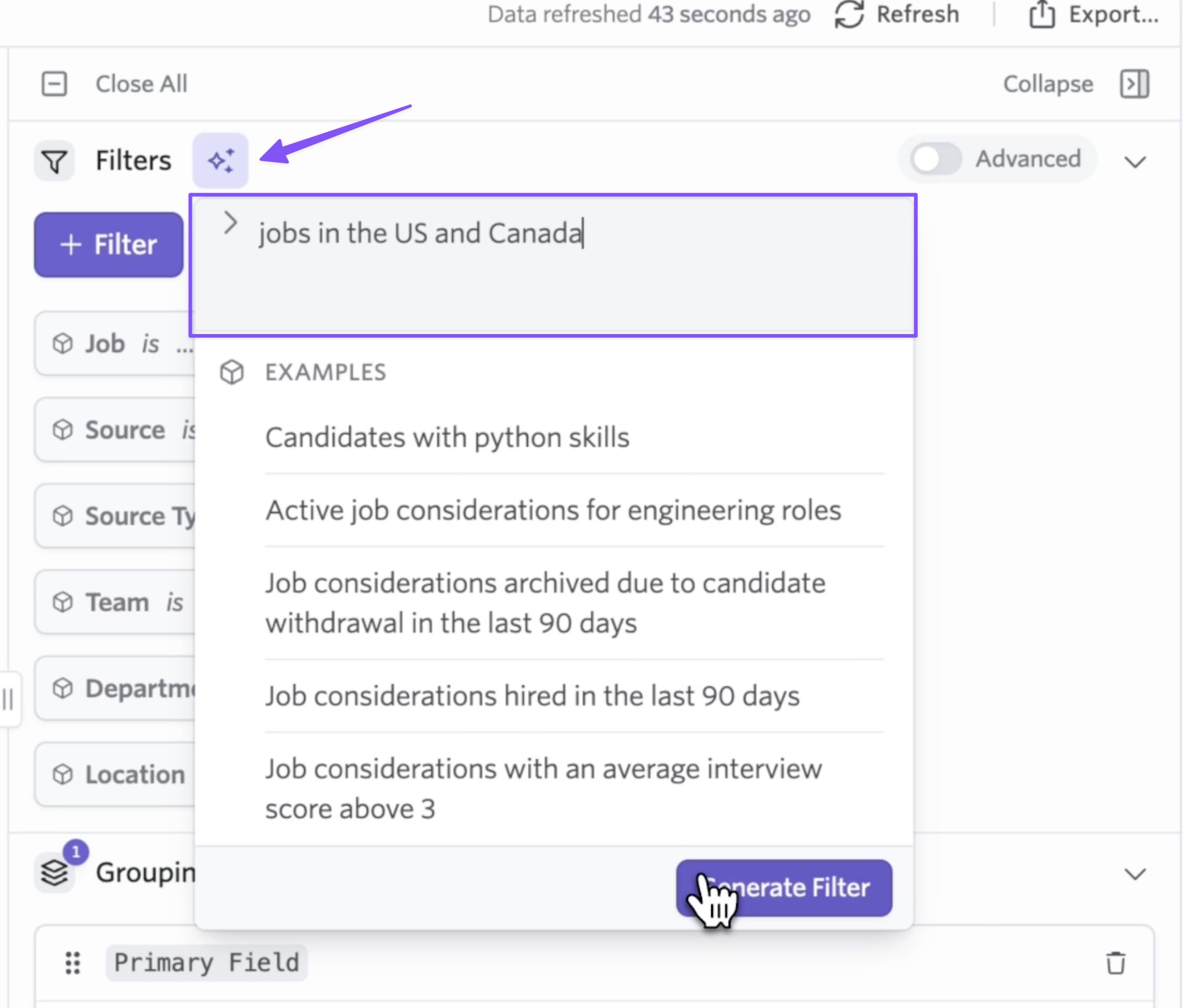
If you've used the AI Filter Assistant in Candidate Search, this is the same experience applied across every report type and reporting subject in Ashby.
Example filters for every subject
AI Report Filters also surfaces example filter suggestions tailored to each reporting subject. They're a quick way to see what kinds of questions your data can answer and a useful starting point when you're not sure where to begin.
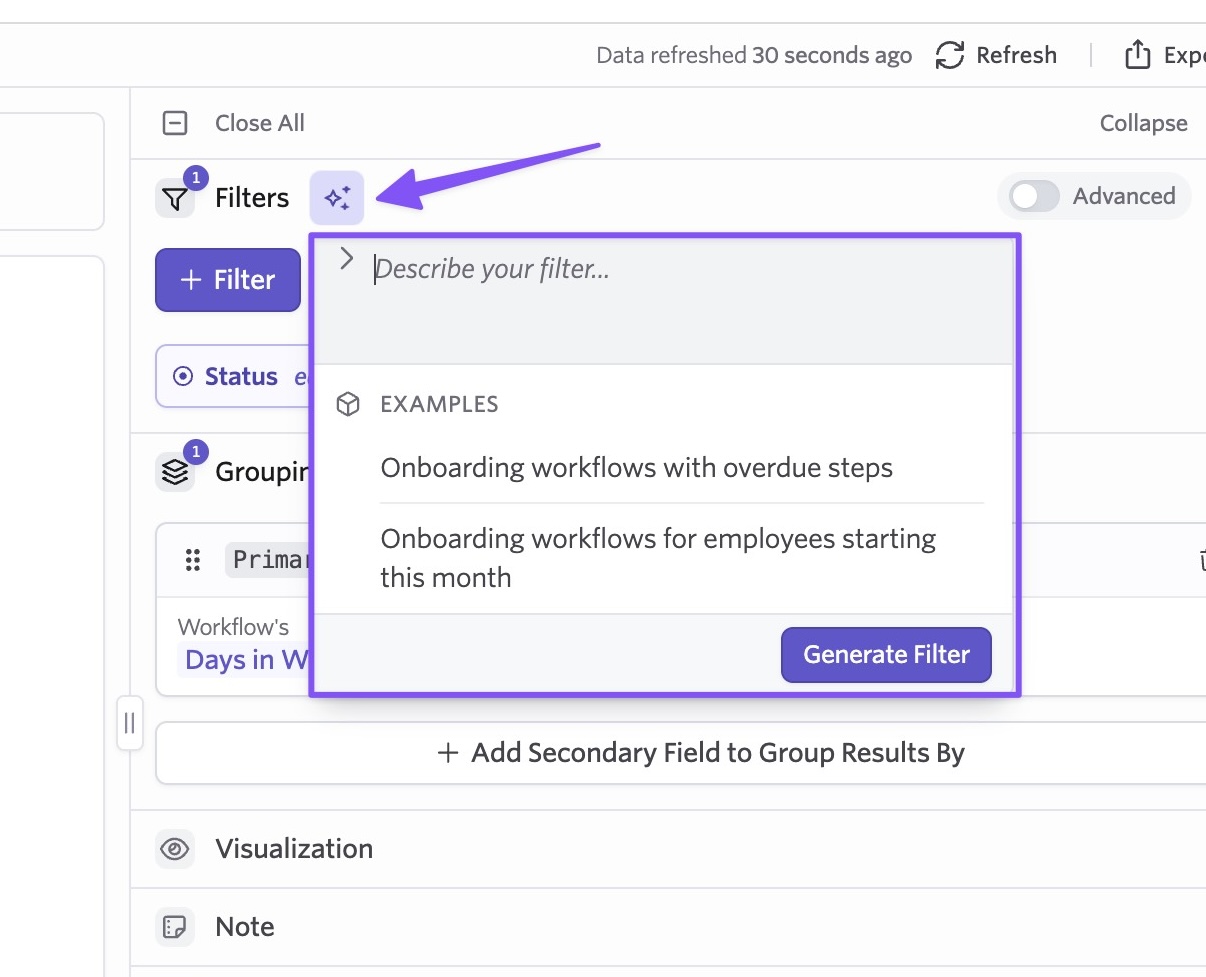
AI Report Filters are available on Plus and Enterprise plans with no configuration required. Open any report and look for the sparkle icon in the filter panel.