Customize the context included in approval requests

We're releasing approval context customization for Offers, Jobs, and Openings, giving you control over exactly which fields approvers see and the order they see them in. Before, every approver received the same fixed set of details on every request.
Build approval context by section
Approval context is organized into sections, each tied to an object type, with the fields for that object inside it. All custom fields on the relevant object types are available, along with select built-in fields. You can reorder fields within a section to put the most decision-relevant details first, and turn off an entire section when it isn't useful for that approval.
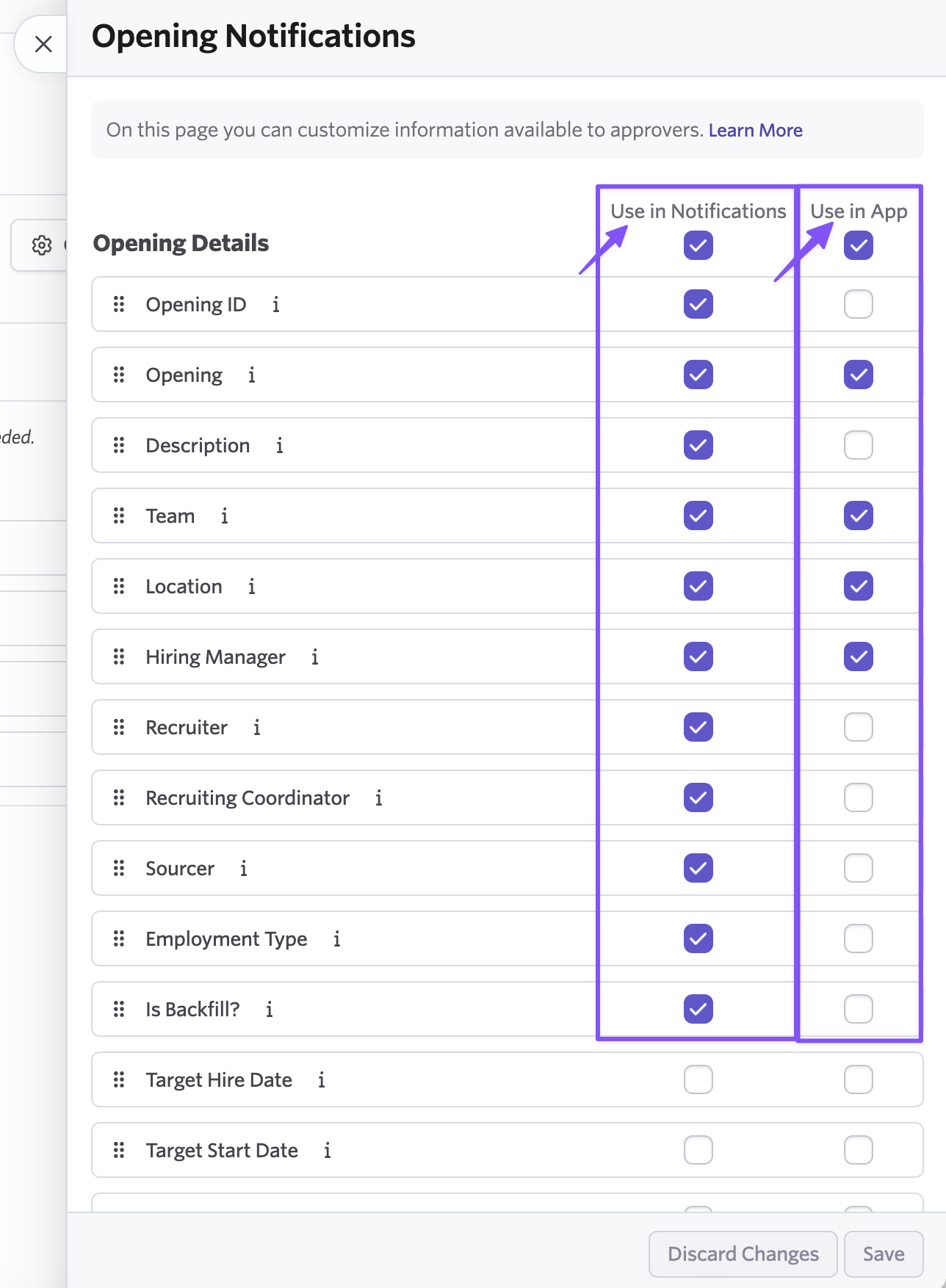
Set in-app and notification visibility separately
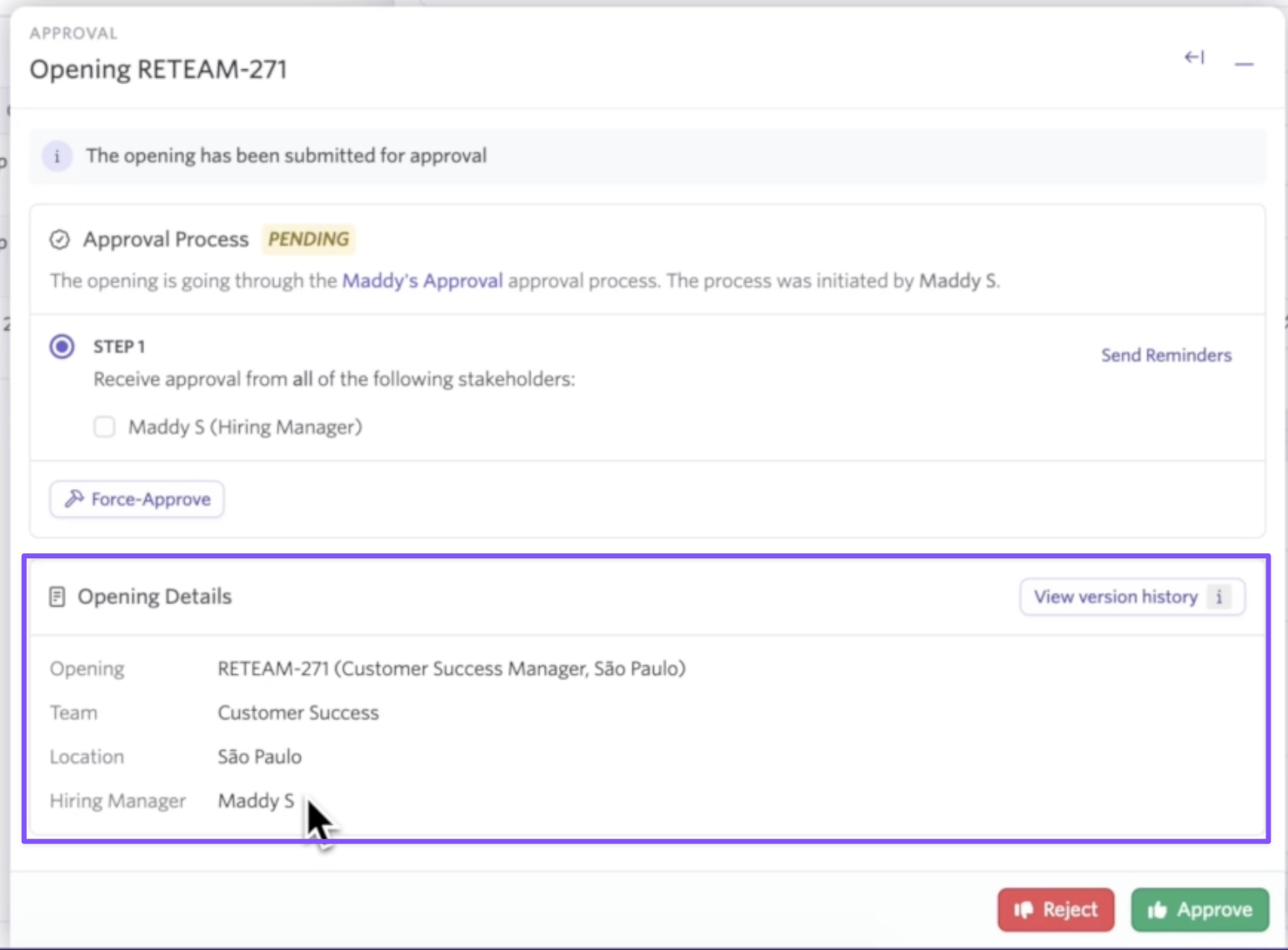
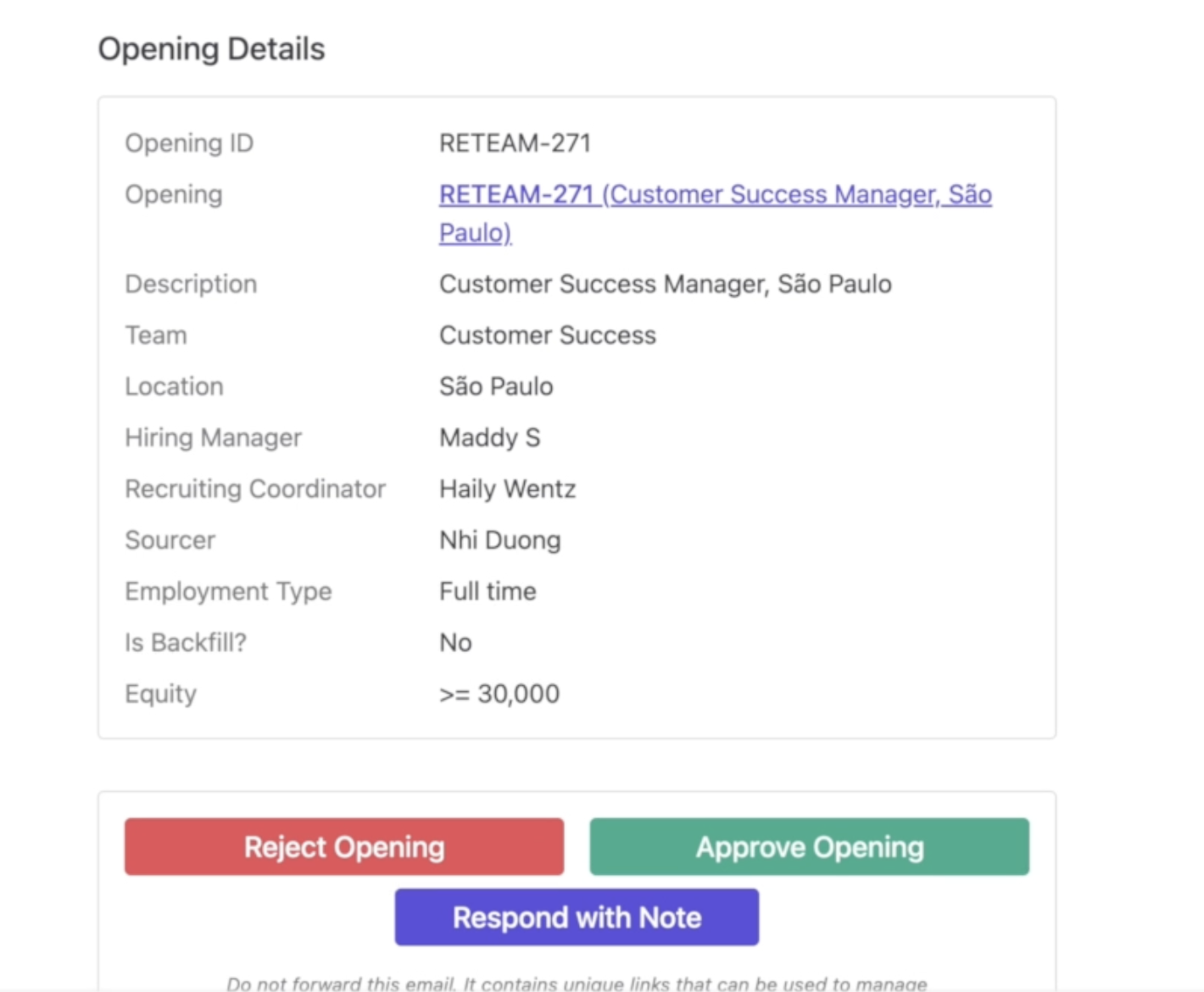
Every field has two toggles: “Use in Notifications,” meaning email and Slack notifications, and “Use in App,” which controls the approval request modal. This lets the two surfaces differ on purpose. You can keep notifications short enough to decide from on a phone while leaving the full detail in the in-app view for approvers who want to dig in.
In app approval flow:
What gets delivered via notification:
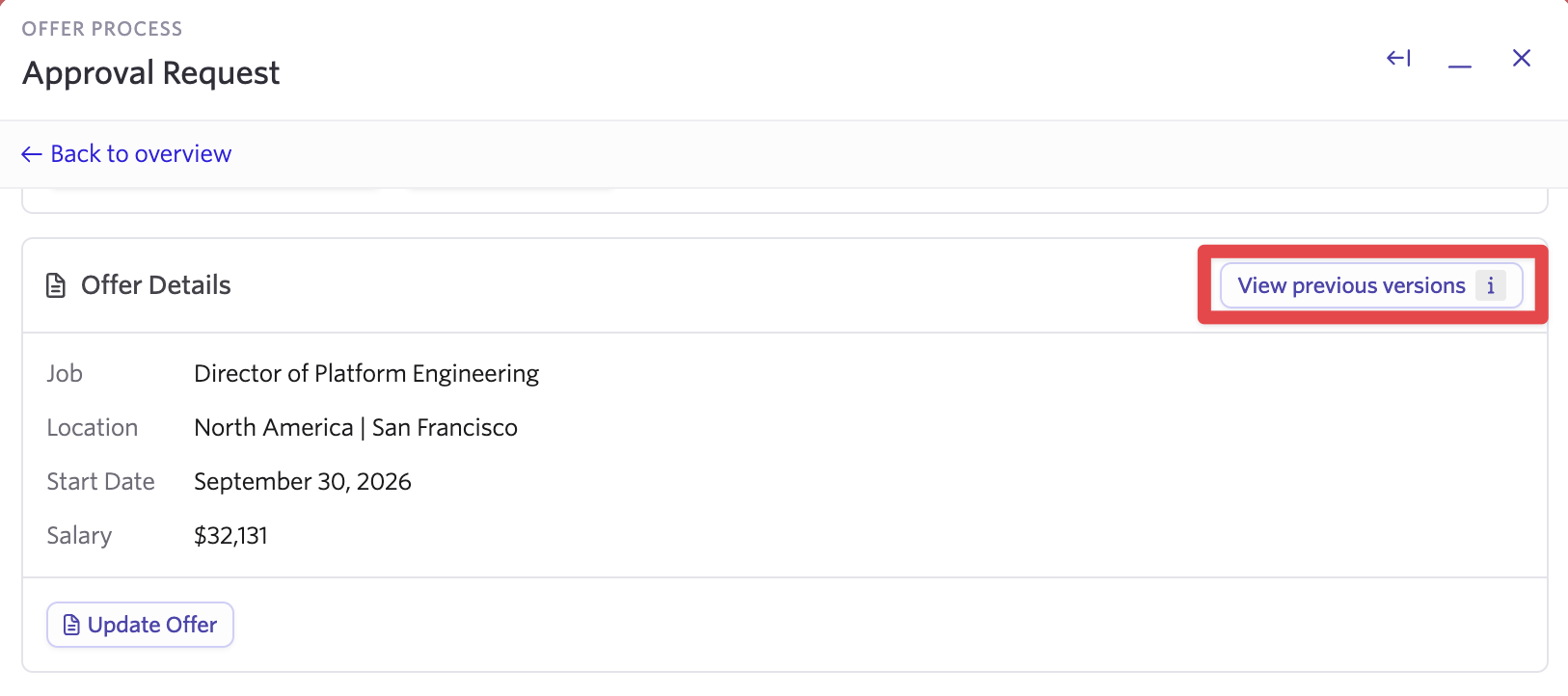
Compare against previous versions
For offer and opening approvals, approvers can view previous versions of the request directly from the approval, so they can see what changed before deciding. Jobs aren't versioned yet.
Getting started
Approval context customization supports offer, job, and opening approvals, and is available to customers on Plus plans. To set it up, go to Admin > Approvals, pick the approval type you want to configure, click “Configure (Offer, Job, Opening) Notifications, and build the sections and fields your approvers should see. Your existing approval workflows and permissions apply, so nothing changes about who approves what.
Configuration is per approval type, so you can start with the one where approvers ask the most questions and continue the roll out from there. To learn more, visit our Help Center article.