Send NDAs and other e-signature documents automatically on stage entry

Today, we're releasing Automated E-Signature Sends, so you can automatically send non-offer documents like NDAs as soon as a candidate reaches the right stage.
Previously, e-signature automation stopped one step short of actually sending the document. You could create an activity reminding someone to send it, but a recruiter or coordinator still had to open that activity, fill in the request details, and send it manually for every candidate.
For teams sending the same NDA or other document dozens of times a month, that repetitive work adds up. Now, the entire send can happen automatically.
Automatically send documents when a candidate enters a stage
You can configure automatic sends from either:
-
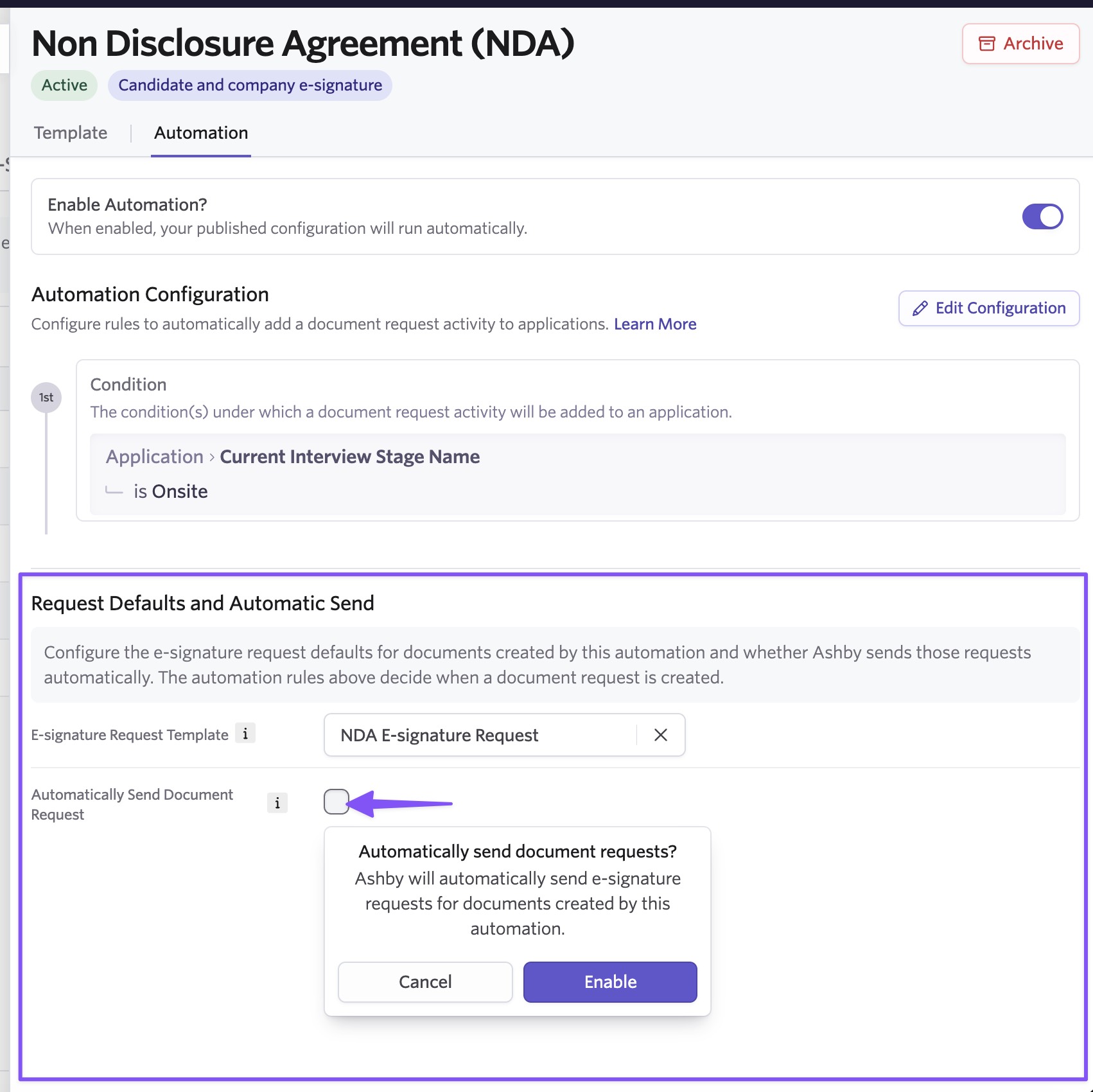
Admin > E-Signature Documents: Click E-Signature Document Templates. Select a template, go to the Automation tab, toggle Enable Automation, and then follow the setup requirements for filters and automation settings.
-
An Interview Plan: In an Interview Plan, add an activity to a stage, and then select E-Signature Document. Select the document template and e-signature request template, then enable automatic sending.
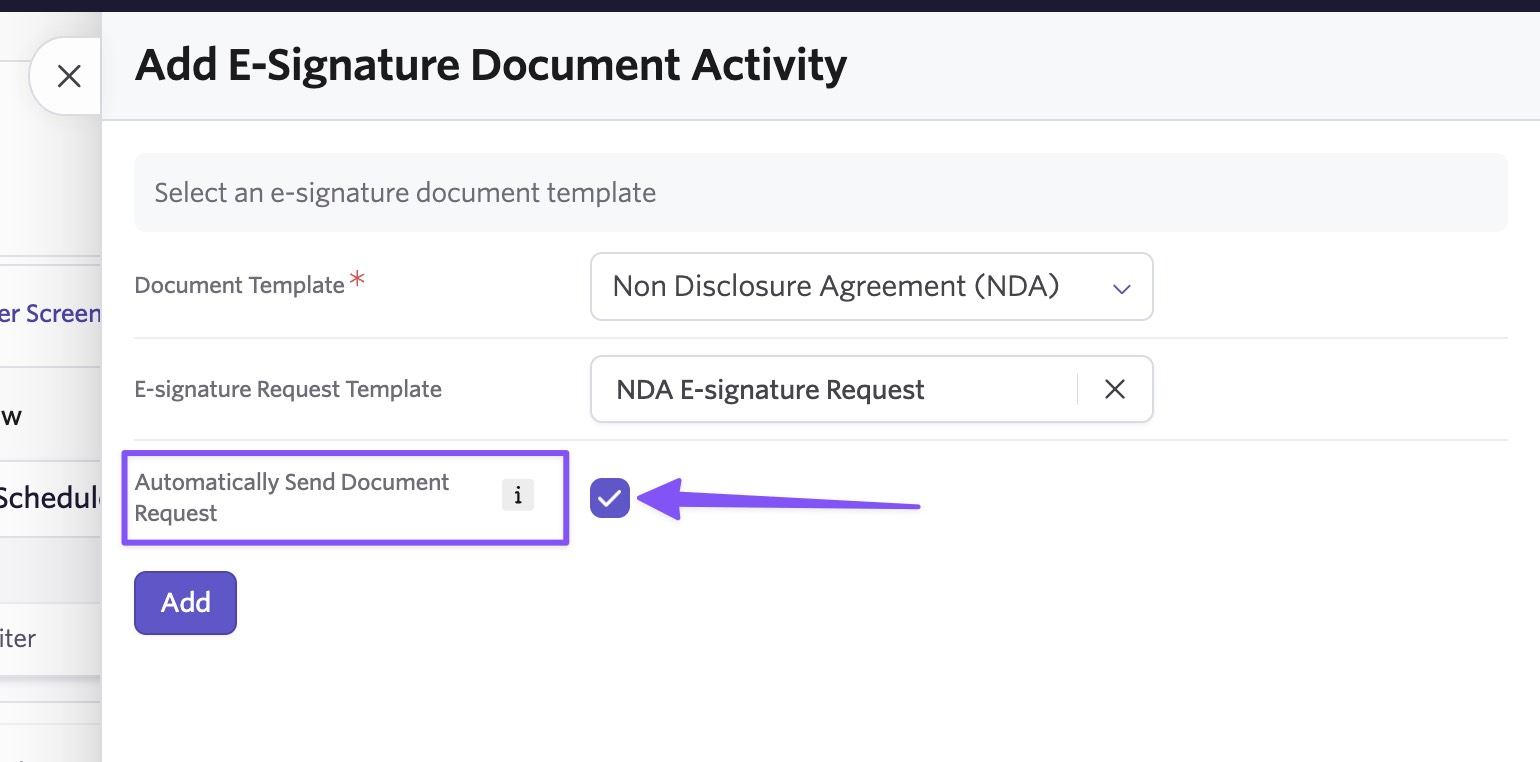
Configuring the automation
In the automation configuration, turn on Automatically Send Document Request, then select:
- Your e-signature provider: Dropbox Sign or DocuSign
- The E-Signature Request Template that defines the email content and request settings
The document is sent automatically when a candidate enters the stage. You can also add conditions to control which candidates should receive it.
An E-Signature Request Template is required whenever automatic sending is enabled, so every automation has a predefined request configuration before anything can be sent.
Built-in safeguards when a document can't be generated
If Ashby can't generate the document, the request won't be sent automatically. This can happen when, for example:
- A required field is missing
- An e-signature parameter hasn't been configured
- The document template contains invalid syntax
Instead, Ashby creates the activity as usual, where you'll see the generation error and can resolve the issue before sending.
Because automated sends can fail without someone actively working in the request, Ashby also creates an Organization Issue so our Support team can proactively flag the problem.
Remove repetitive document sends from your team's workflow
This removes the manual work of sending high-volume, repeatable documents while helping recruiting operations ensure documents go out consistently at the right stage. That means fewer missed or delayed sends and better visibility into what was requested and when.
Getting started
Automated E-Signature Sends are available today for Plus and Enterprise customers, currently supporting non-offer documents only. Offer documents will continue to use the existing offer workflow.
To get started, go to Admin > E-Signature Document Templates, open a template, navigate to the Automation tab, and enable Automatically Send Document Request. You can also configure automatic sending by adding an activity to a stage in an interview plan.
Visit our help center to learn more.