View and refine interviewer filters direct in manual scheduling

You can now view and edit interviewer filters directly while manually scheduling or rescheduling an interview in Ashby, helping you find interviewers who meet the criteria for a particular candidate without leaving the scheduling flow.
An interviewer pool gives you a starting point, but individual candidates can call for more specific criteria. You might need someone at L4 or above, or an interviewer who has been at your company for at least two years. Checking those details can mean opening the employee directory or returning to the Schedule Template while you're putting together the interview.
With this update, you can review the criteria already defined for a slot and refine your selection in the same place you're scheduling.
See what defines each interviewer slot
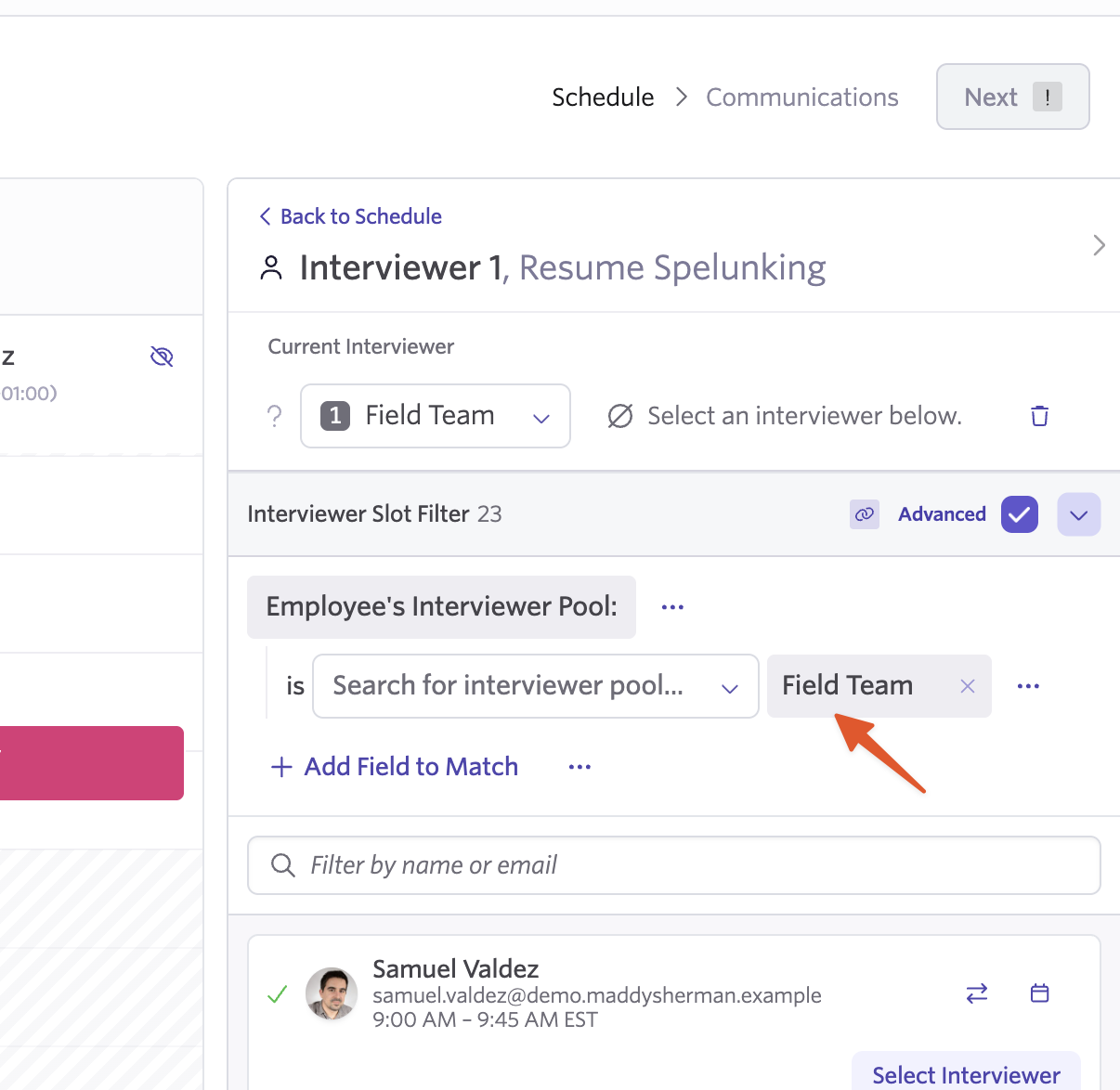
You can now see the filters that determine which interviewers are included in a slot directly from the interviewer selector. This gives you the context you need to understand the available options before choosing someone.
If a Schedule Template includes advanced filter criteria, you can reference that logic while scheduling instead of remembering how the slot was configured. Open the Interviewer Slot Filter menu and select Advanced to review the conditions.
Refine your selection for the candidate at hand
You can also edit those filters or add conditions using employee attributes to narrow your options for a specific interview.
For example, you might start with a broader interviewer pool, then add a level requirement for a senior candidate. Or you could filter for employees with at least a year at the company when you need an interviewer with more organizational context.
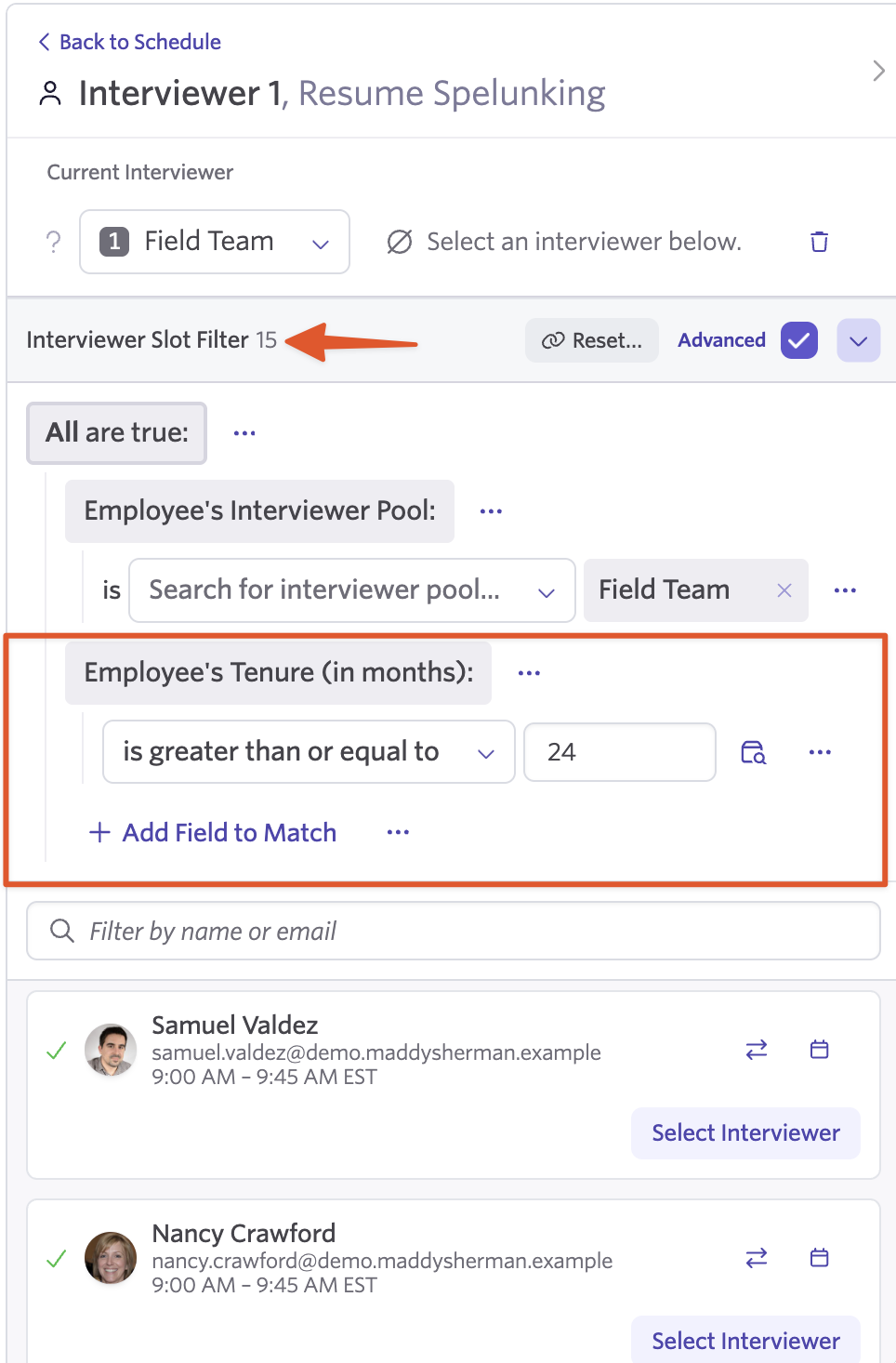
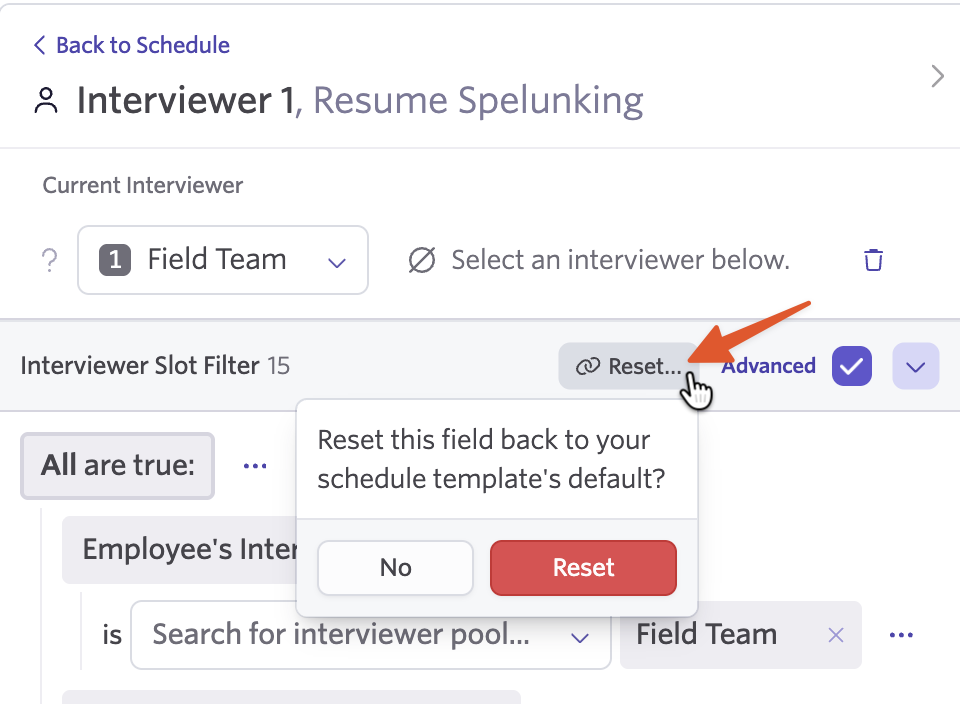
As you adjust the filters, the interviewer list updates to match your criteria. Your changes are saved for that interview and remain in place if you reschedule it. You can select Reset to restore the filters from the Schedule Template.
Reuse frequently used criteria with calculated fields
If you regularly filter interviewers by the same attributes, calculated employee fields can help make those criteria easier to apply.
For example, you can create reusable values for level-based criteria such as “Level 2” or “Level 5 and above,” then use those values when filtering interviewers.
Calculated fields update dynamically as the underlying employee data changes. This helps you maintain useful groupings without manually adding or removing people from a separate interviewer group every time their information changes.
Getting started
Improved interviewer filtering is available across all Ashby All-in-One plans. To get started, open the interviewer selector while manually scheduling or rescheduling, then choose Advanced from the Interviewer Slot Filter menu. Visit our manual scheduling documentation for more details.