Override a candidate’s hired date to keep accurate hiring data

You can now view and edit a candidate’s hired date directly from the candidate profile, so you can correct it when it differs from your company’s default hired date setting.
Accurate hiring analytics depend on the actual date someone was hired, not just when an offer was accepted or when they were moved into the Hired stage.
You can now view and edit a candidate’s hired date directly from their profile, so hires per period, time to hire, and planning numbers reflect the right date without requiring a support ticket.
See the hired date in Interview Progress
Under the Hired stage row in the Interview Progress section of a candidate profile, you'll see a "Marked as hired on [date]" line showing the effective hired date. Ashby derives that date from either the offer acceptance date or the date the candidate was moved into the Hired stage, based on your organization's hired date timing setting within Offer Stage Configuration. Manually edited dates include a tooltip noting the override.
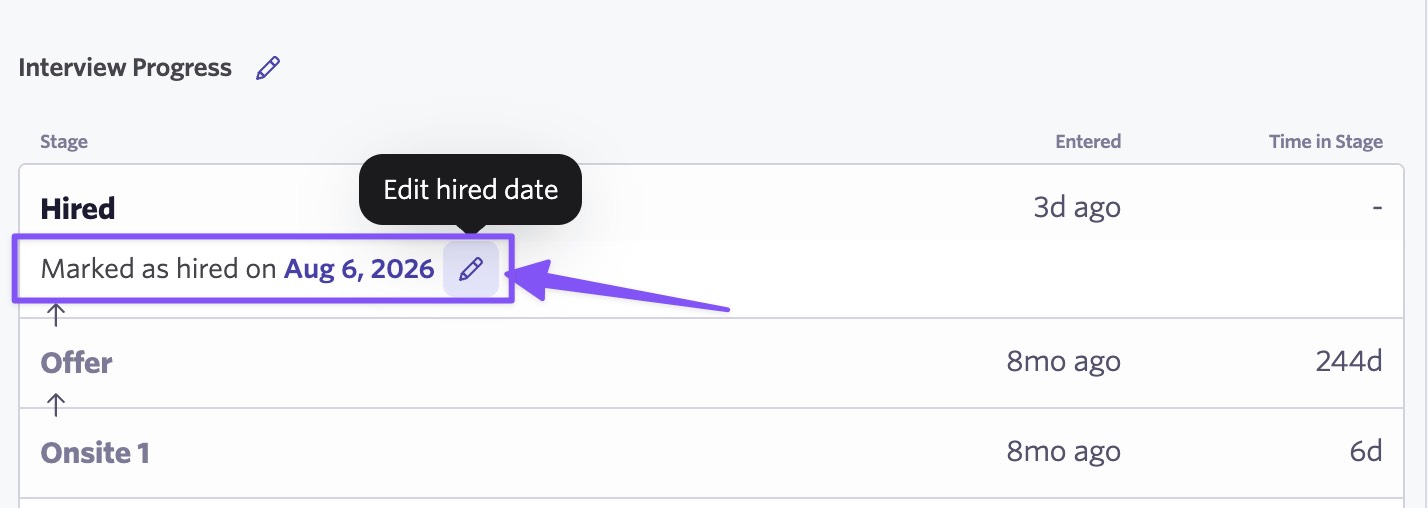
Correct the date when it's wrong
Click the pencil icon to open the edit modal. From here, you can quick-select one of the system dates, offer accepted or moved to Hired stage, or choose any custom date. This works whether or not your organization uses offer stages or has an offer in Ashby.
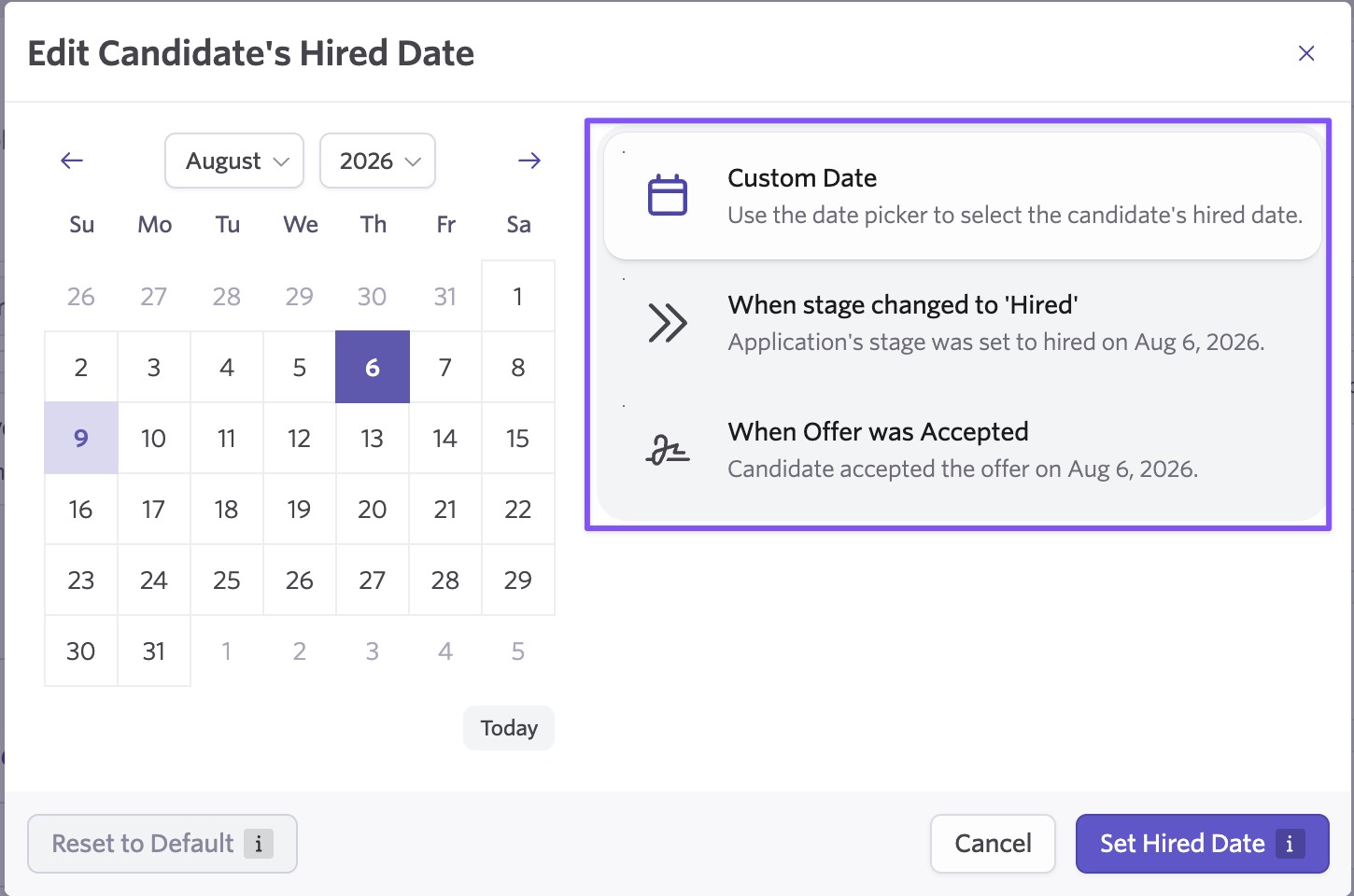
Any date you set is saved as a manual override anchored to that exact date, including dates selected through a quick-select option. This means it won't shift if the underlying offer or stage dates change later. To return to the dynamic behavior driven by your hired date setting, use "Reset to Default."
Overrides also take precedence over synced data, so a resync from an external system like Workday or Lever won't overwrite a date you've set.
Corrections flow through to reporting, with a full audit trail
Reports, filters, and candidate lists all use the corrected hired date as soon as it's saved. If a candidate is moved out of the Hired stage, the hired date returns to null; if they're moved back into the Hired stage, the override applies again.
Stage history and time-in-stage metrics are untouched, so correcting the hired date won't affect the underlying stage history.
Every time an override is set or cleared, a card appears in the candidate's activity feed showing who made the change and what they changed it to.
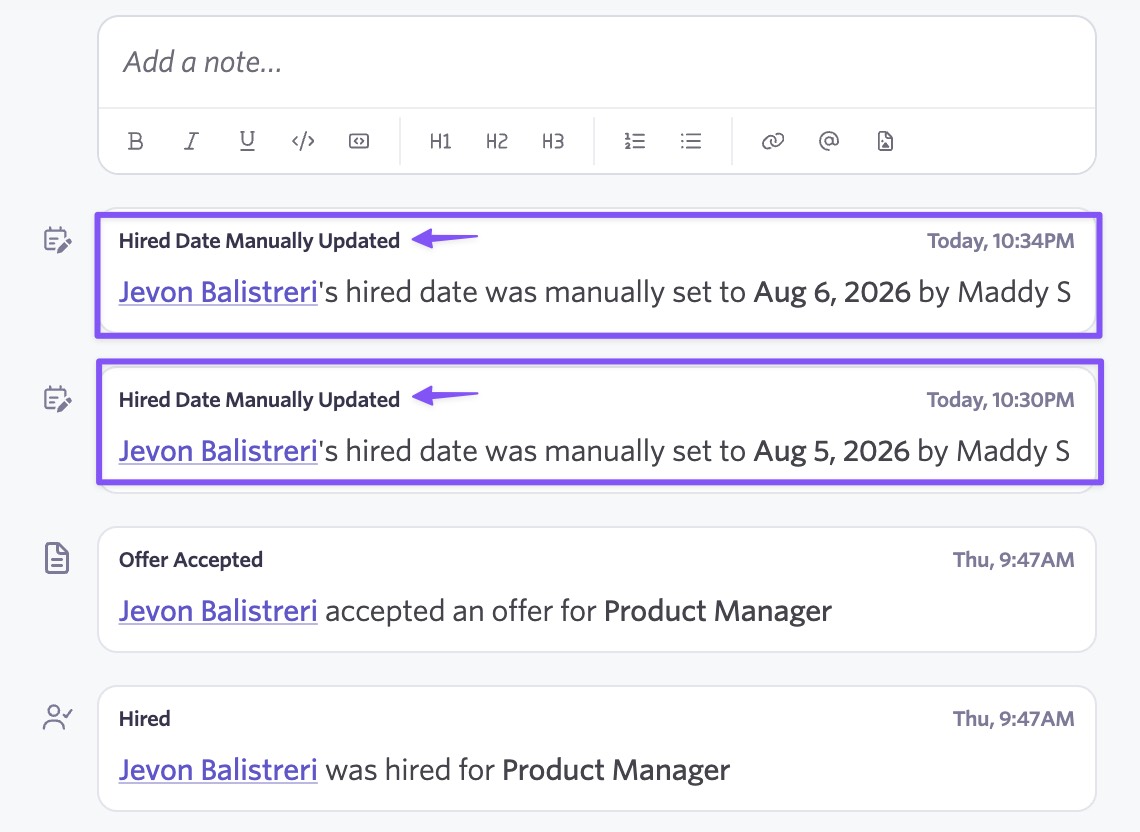
Getting started
Editing the hired date is available to all customers. It requires the same permissions as editing the Offer Accepted Date: Edit Candidate and Private Fields for that candidate.
Please note that setting the hired date basis to "On Moved To Hired Stage" requires offer stage configuration, which is Plus and Enterprise only.
To get started, open any hired candidate and click the pencil icon next to the hired date in Interview Progress. Visit our help center for more details.