Optional candidate availability notes

Candidates can now add an optional note when submitting availability, so important scheduling context stays attached to the times they provide and is visible wherever you schedule in Ashby.
Previously, details like flexibility outside listed hours, a day they could no longer make, or a preference for morning interviews often came through separate emails. Now, candidates can include that context directly with their availability, making it easier to schedule without switching between messages and calendars.
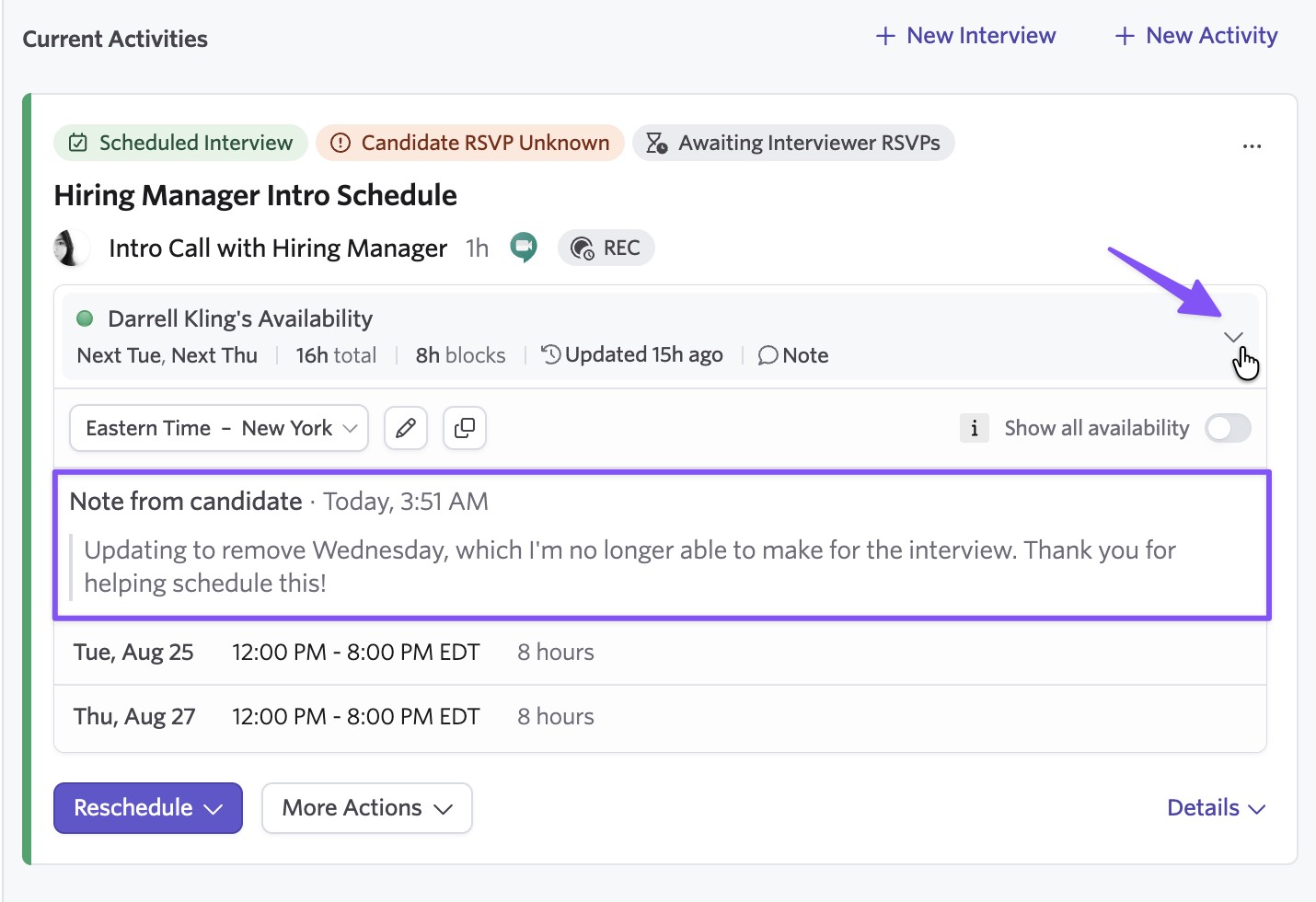
Included in this update
- An optional Notes field on the candidate availability submission page
- Notes displayed alongside availability on the candidate profile
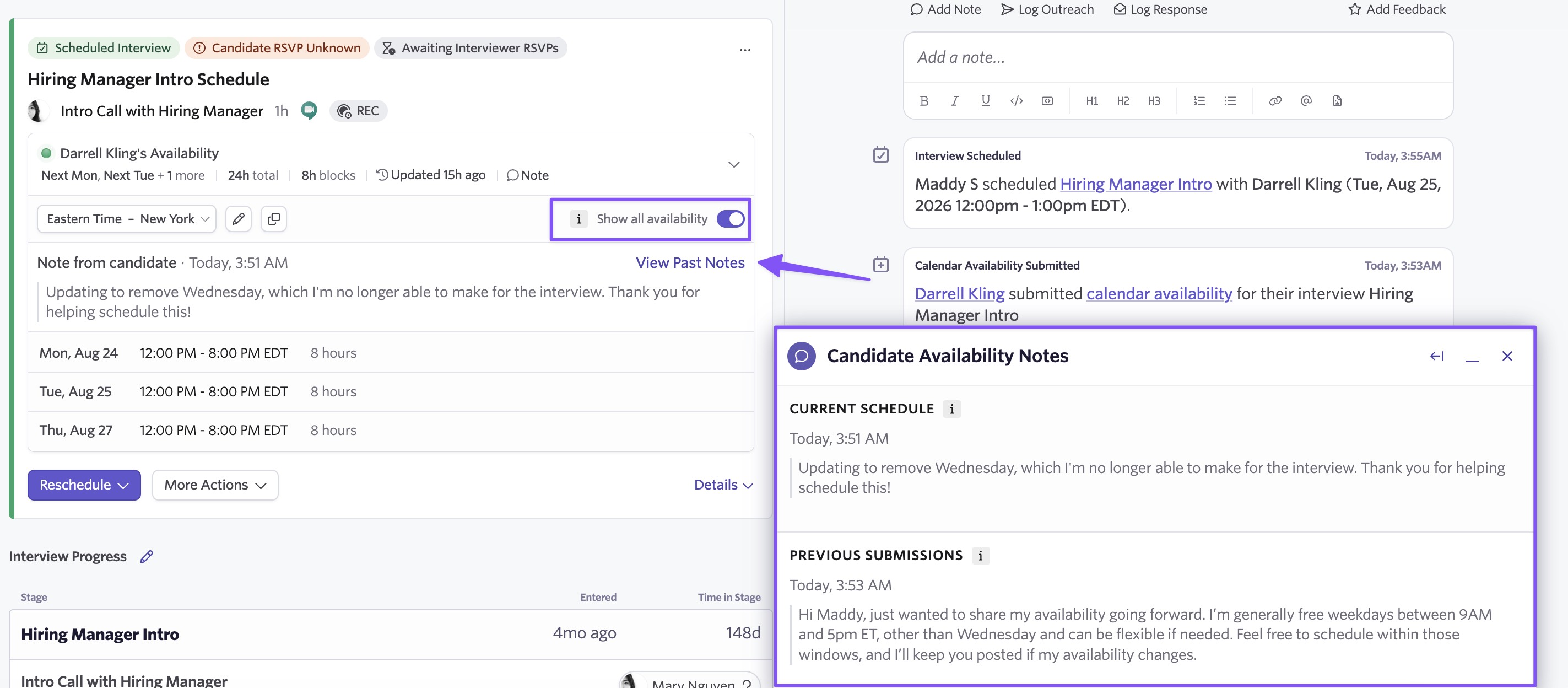
- A Candidate Availability Notes panel showing current and previous submissions
- Notes available directly in the manual scheduling calendar
What candidates see
After selecting their available days and time ranges, candidates can add an optional note with any scheduling preferences or additional context.
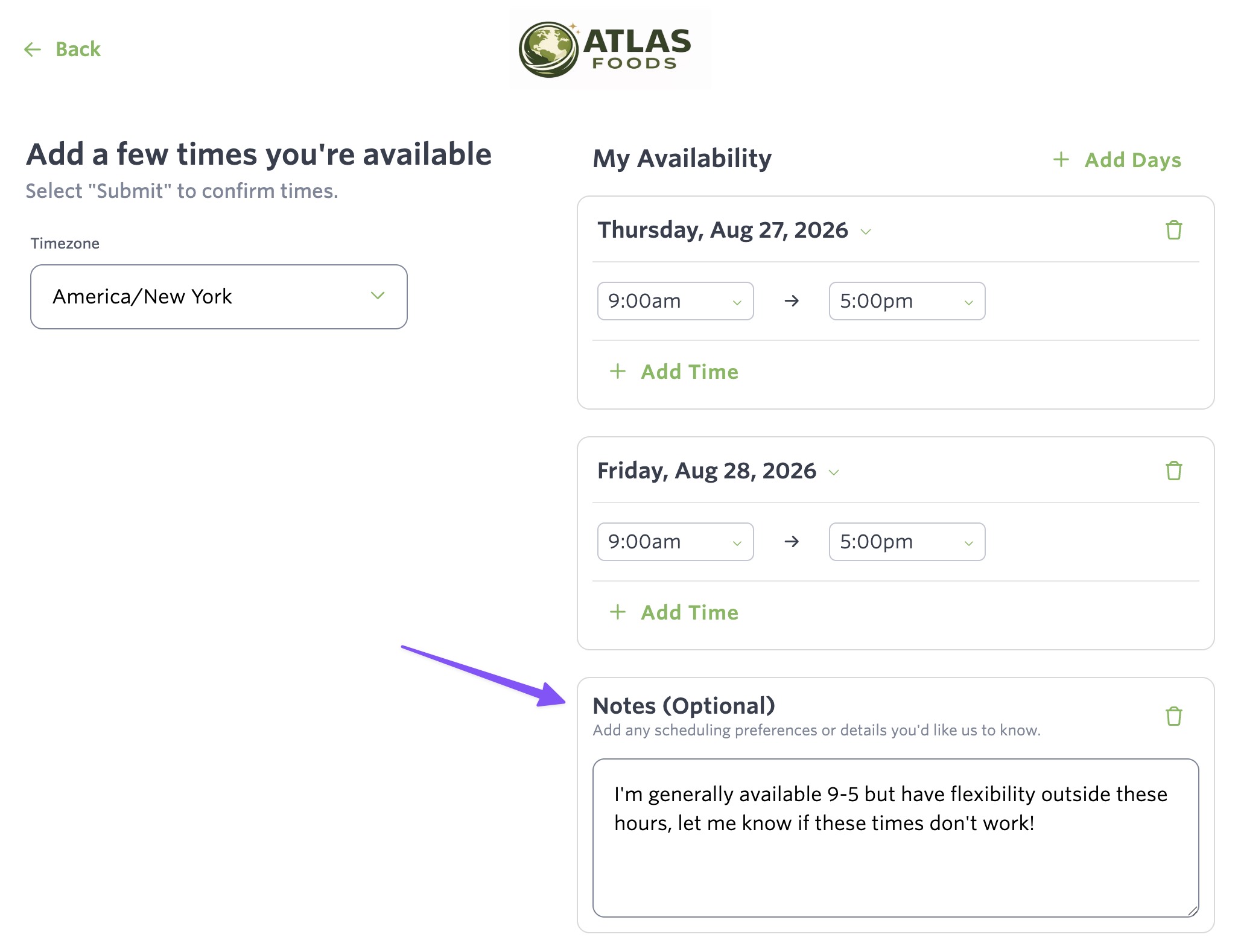
Notes are free text and optional. Candidates can add a new note or update their previous note each time they submit or revise their availability.
Where notes appear in Ashby
On the candidate profile, the availability card displays a Note indicator alongside the availability summary. Hover over it to preview the note and see when it was submitted, or expand the card to view the note directly above the candidate's available time blocks.
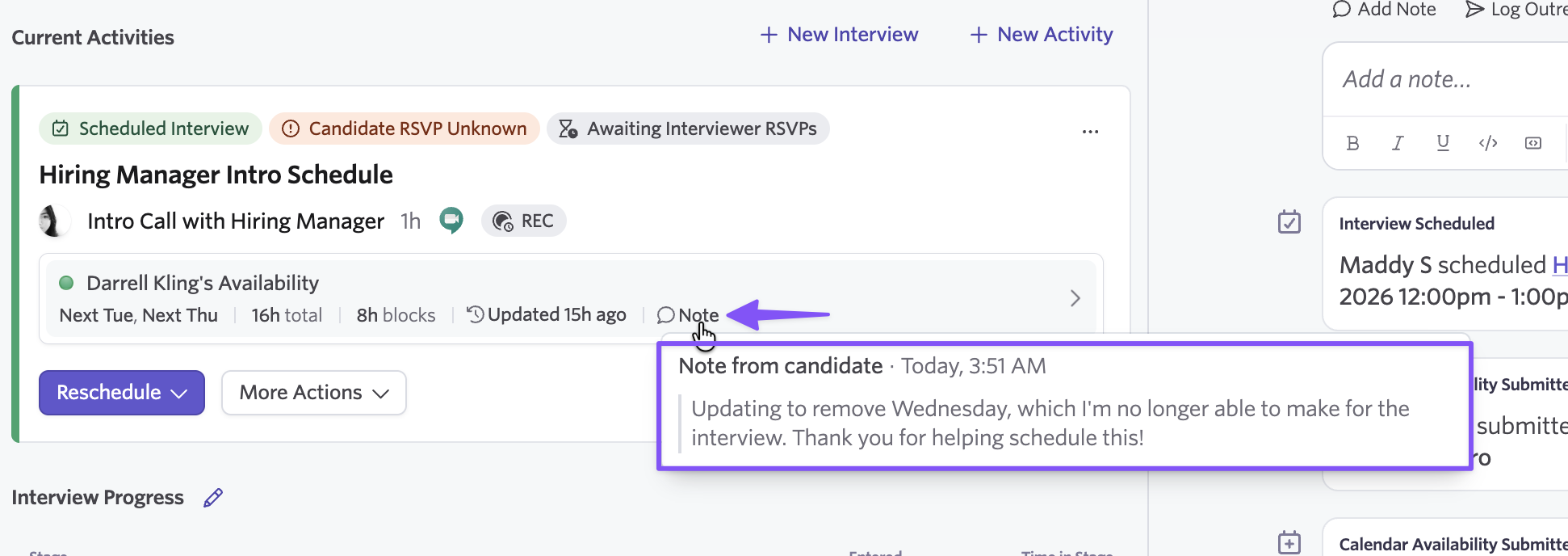
If a candidate resubmits availability, their newest note becomes the current note while earlier notes are preserved with their previous submissions.
Toggle Show past availability, and select View Past Notes to open the Candidate Availability Notes panel. The panel separates the note associated with the candidate's current availability from previous submissions, with timestamps showing how their preferences or constraints have changed over time.
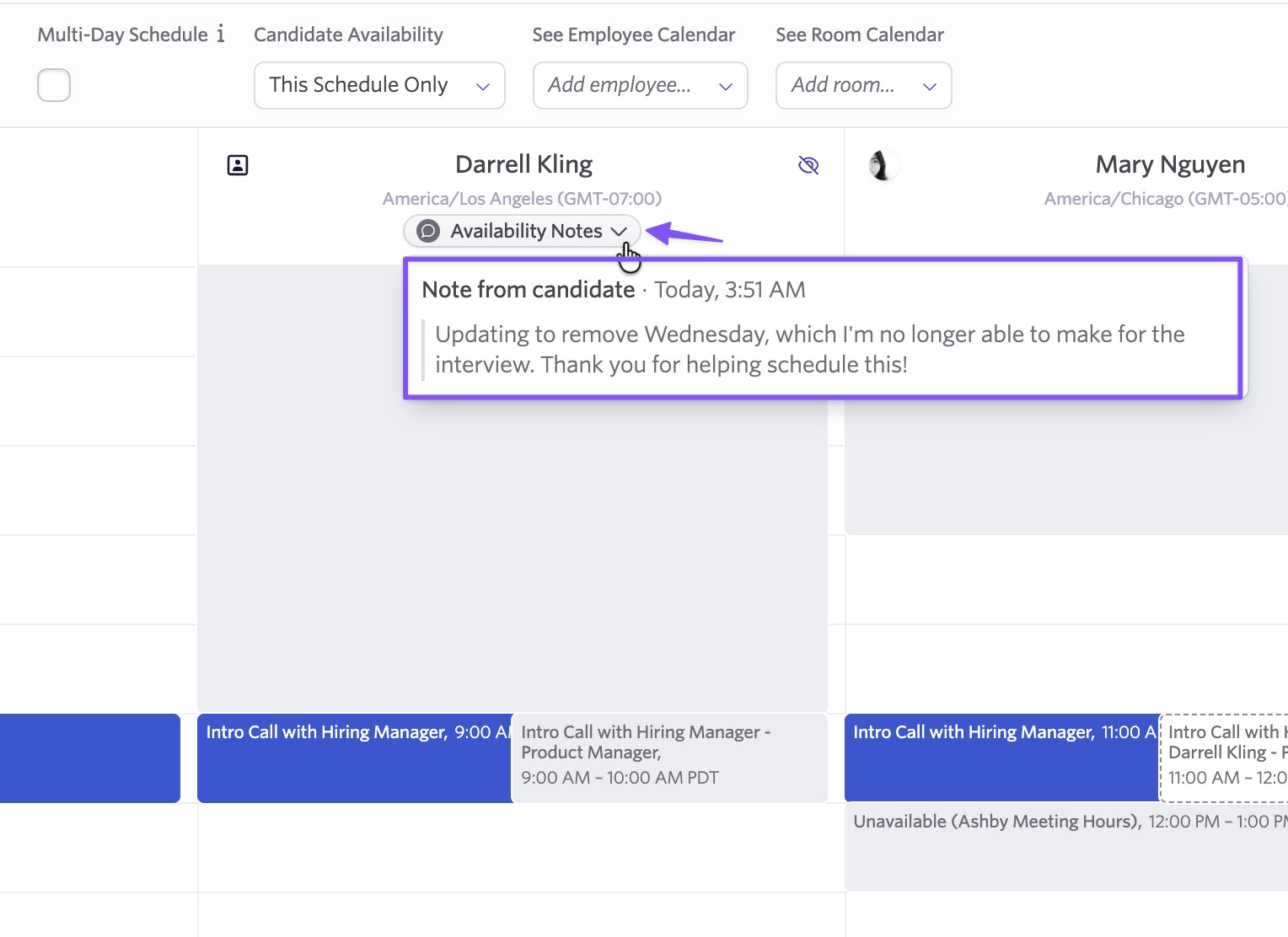
When scheduling, an Availability Notes dropdown appears below the candidate's name in the calendar view, keeping their preferences visible while you choose an interview time.
Getting Started
Candidate availability notes are auto-enabled on availability request links, with no configuration required. Any note a candidate submits will appear alongside their availability in Ashby. The feature can be turned off in scheduling defaults or specific schedules if preferred.