Use Recruiting Blocks to define exactly when you're available to interview

We're introducing Recruiting Blocks, giving interviewers a way to reserve specific times for interviews while keeping the rest of their calendar free from scheduling.
Until now, the only real lever was meeting hours, which sits outside your day-to-day workflow and only holds up when your week looks the same every week.
Direct booking links offer whatever time is open on your calendar, so the only way to narrow it further is to fill those openings with placeholder events, which is hard to maintain and blocks time you need for everything else.
Define blocks on your own calendar
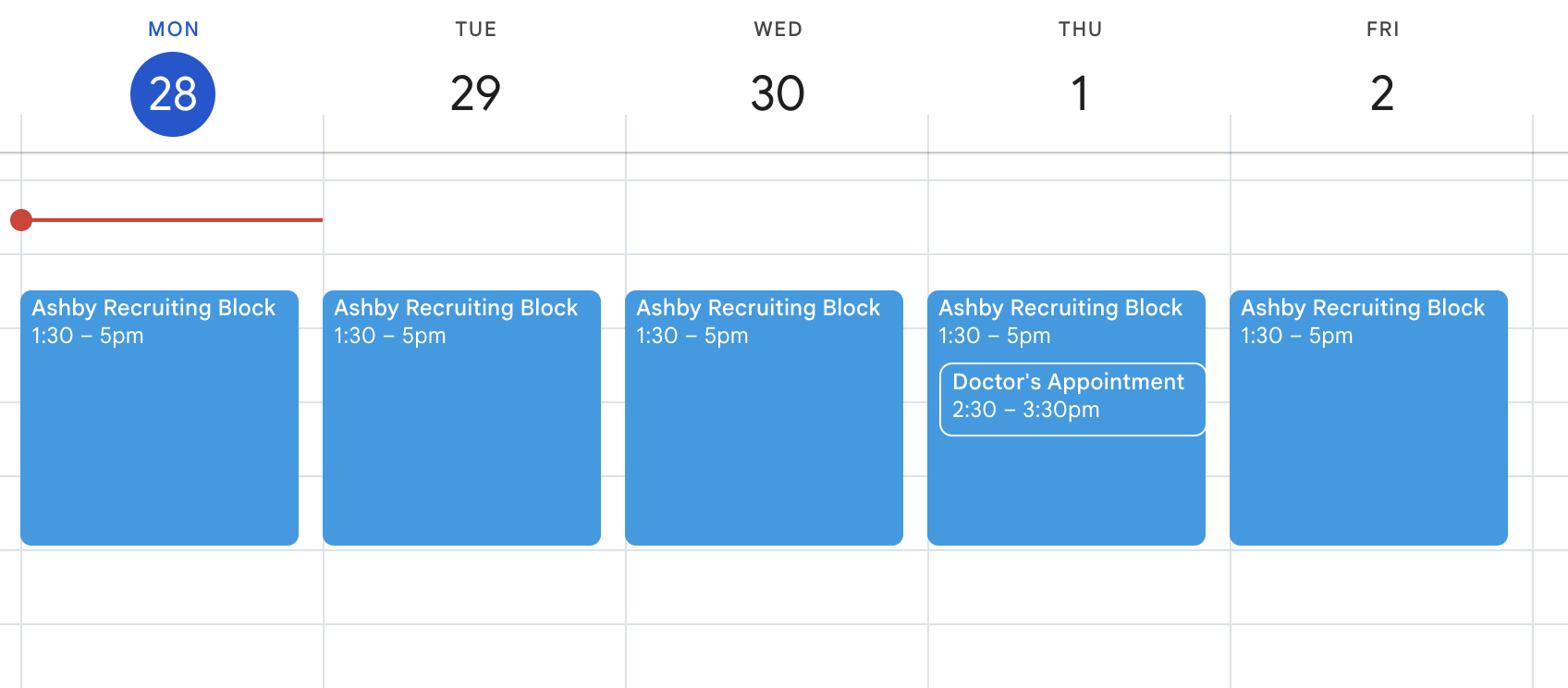
Create an event on your native calendar with the title "Ashby Recruiting Block," and Ashby treats that time as available for interviews and ignores everything else.
Blocks can be one-off or recurring, so you can hold Tuesday and Thursday mornings every week, or open up a single afternoon when a search heats up.
Turn blocks on per person or per schedule template
Recruiting Blocks can be enabled at two levels. In your personal settings, turning blocks on means your availability comes from blocks anytime you're scheduled for an interview.
On a Schedule Template, turning blocks on applies to every interviewer considered for those interviews.
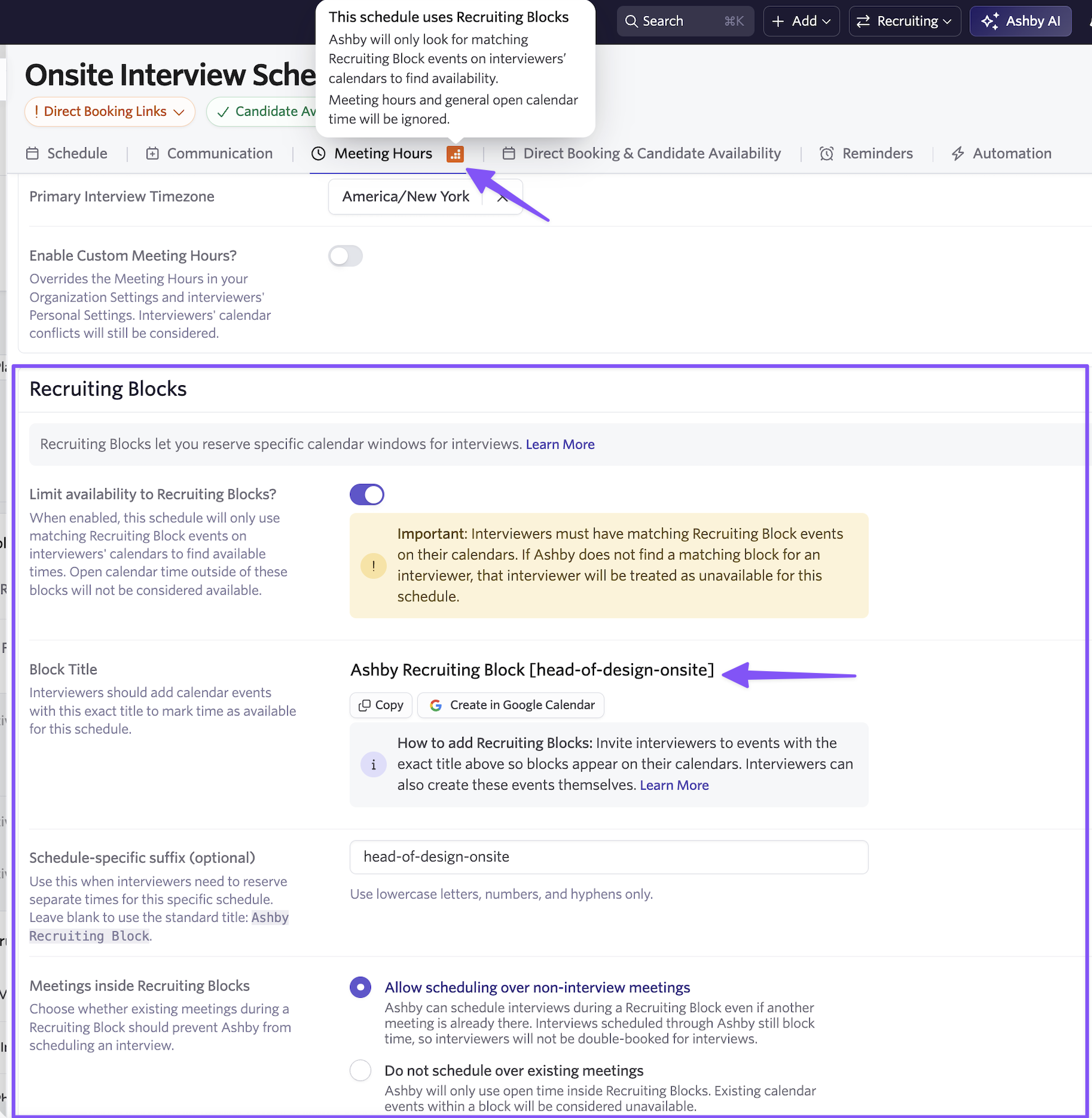
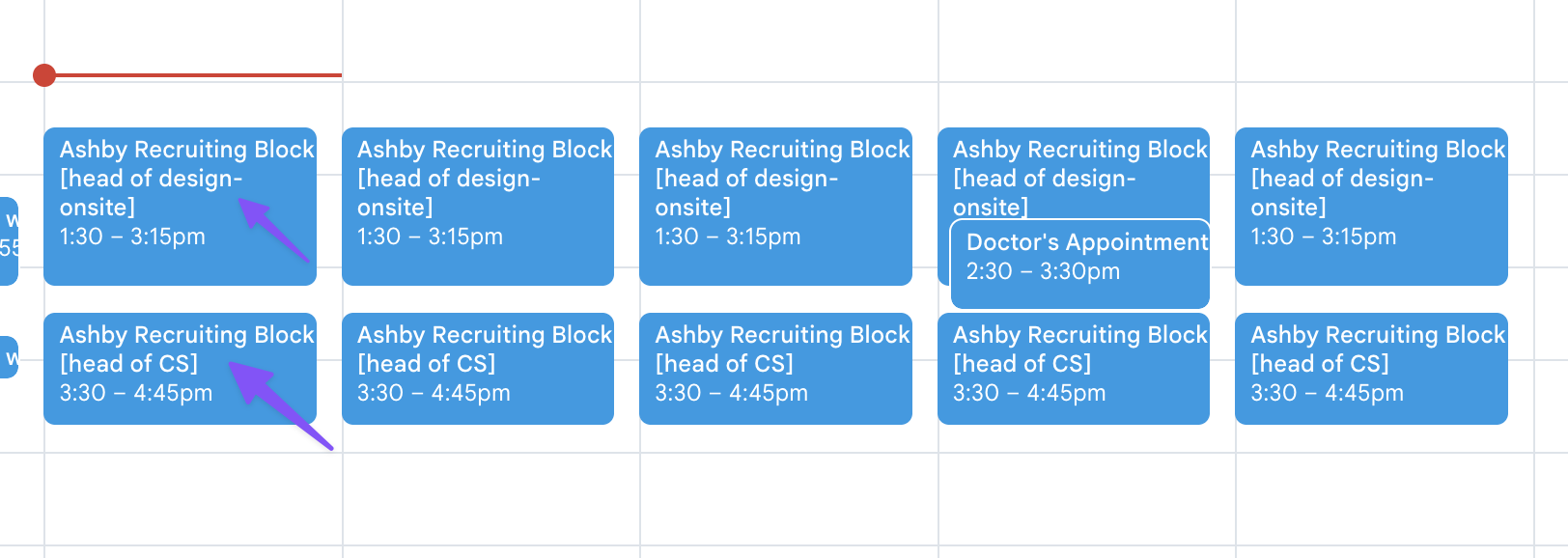
You can also set different keywords for different Schedule Templates, which lets you dedicate time to specific roles. Give Tuesday mornings to intro interviews for a full-stack role and Wednesday afternoons to the engineering manager search, or hold twelve hours a week for one role and four for another.
Admin controls
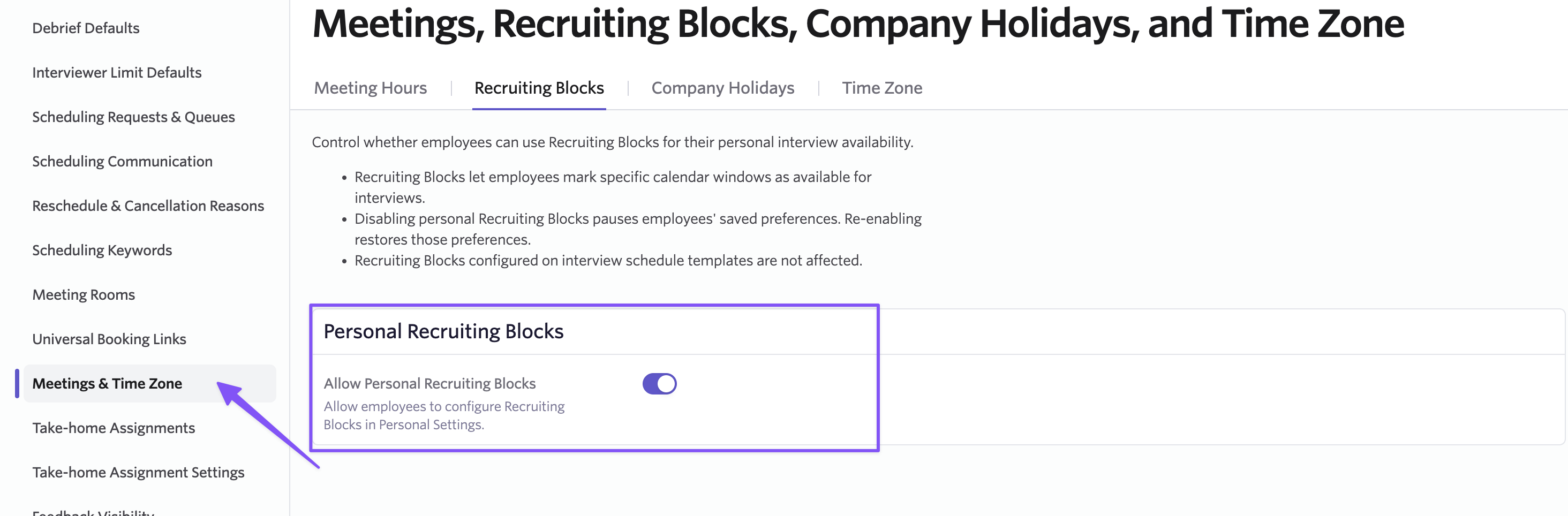
Admins can turn Recruiting Blocks off across the organization, report on which users have blocks enabled, and override an individual's personal settings. Employees can always change their own settings back, so the override is a starting point rather than a lock.
Recruiting Blocks apply across direct booking links, auto-schedule, and the calendar view in manual scheduling. Manual scheduling still lets you book outside a block when you need to.
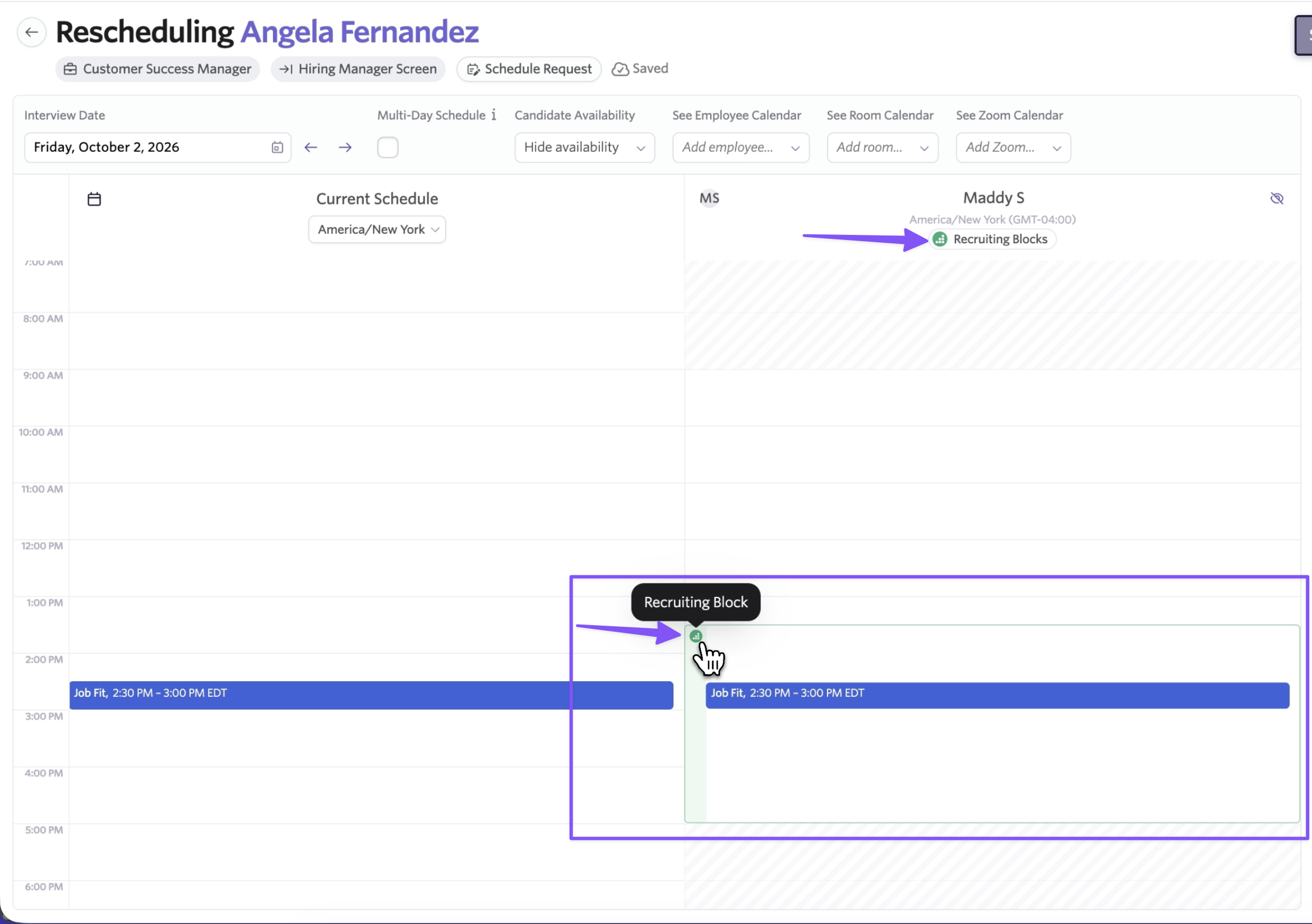
This also helps with the hardest calendars to schedule against. When an executive's calendar is full, their EA can drop a block on it, and coordinators can book into that time instead of negotiating for it.
Getting started
Recruiting Blocks is available to Enterprise customers on the Advanced Scheduling add-on. To get started, go to your personal settings to turn blocks on, or enable them on a specific Schedule Template. To learn more, visit our Knowledge Base articles about setting up and managing Recruiting Blocks.