View and save candidate email attachments without leaving the candidate profile

Candidates often send important files over email, from updated resumes and take-home assignments, to portfolios and signed documents.
Now, those attachments are available directly in the candidate profile. Files from newly synced candidate emails appear inline in the feed, and you can save the ones you want to keep in the candidate’s Other Files.
Attachments show up automatically in the email feed
As new emails sync from Gmail or Microsoft 365, attachments appear inline on the email in the candidate's feed.
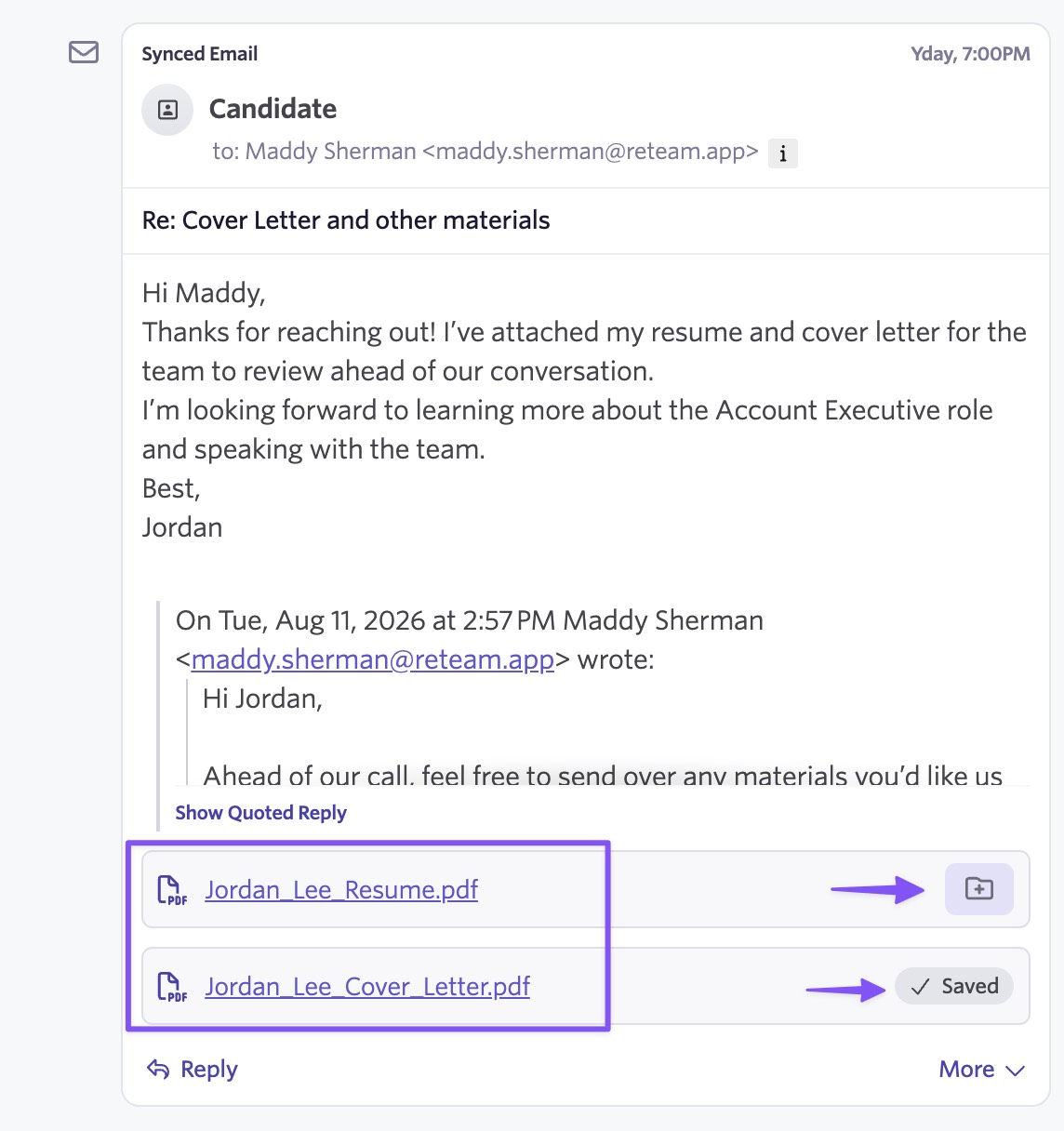
What’s surfaced: Relevant candidate documents, including PDF and DOCX files like resumes and cover letters, as well as images.
What’s filtered out: Things that aren’t useful for recruiting, like email signatures, tracking pixels, calendar invites, contact cards, security signatures, forwarded email content, executable files, and empty or very large files (over 50 MB).
Surfaced attachments go through Ashby’s existing file pipeline, so they’re virus-scanned and their filenames are sanitized, just like any other candidate file.
This works for new emails going forward. Attachments from emails that synced before August 12, 2026 will not display in the candidate view.
Save surfaced attachment to Other Files
From the email feed, you can save surfaced attachment directly to a candidate’s Other Files.
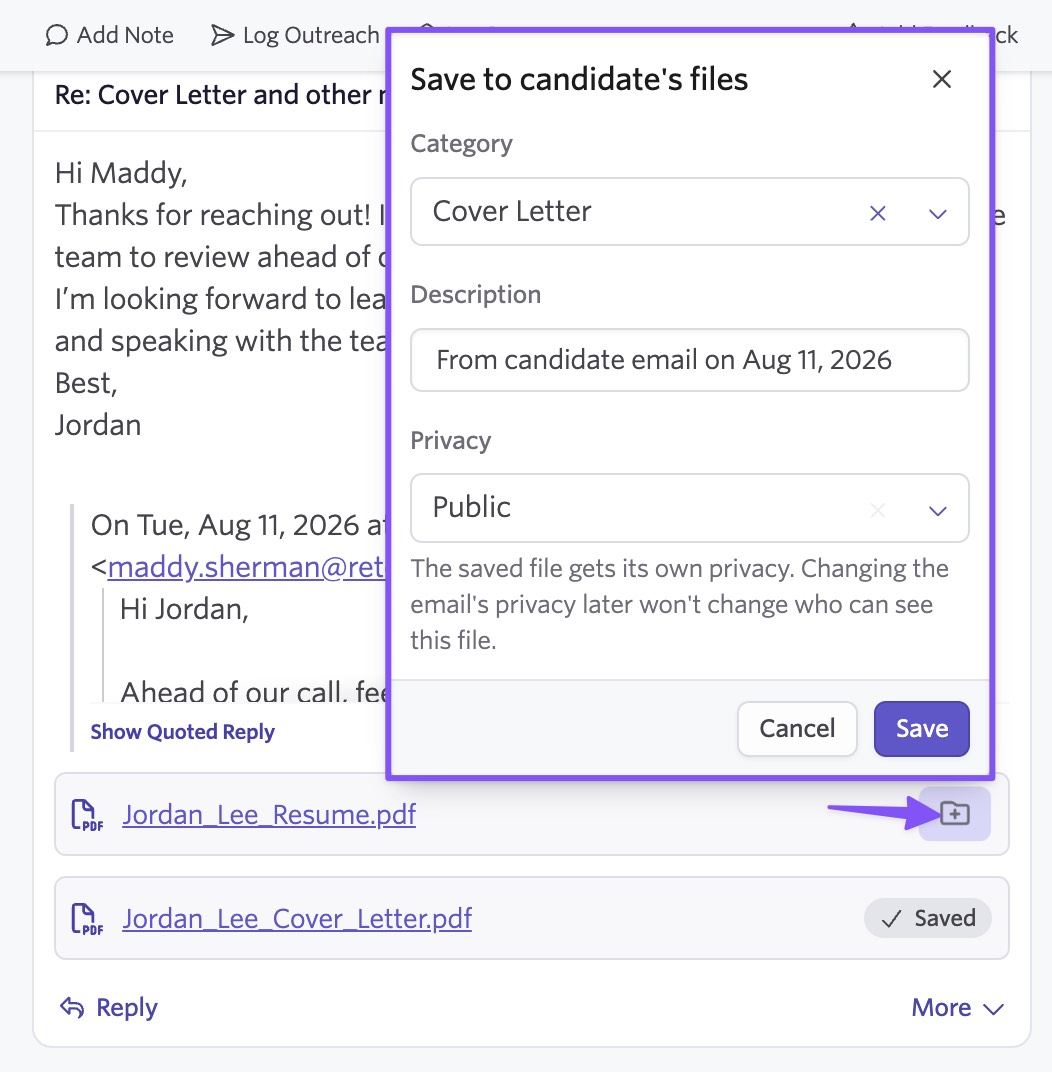
When you save an attachment, a quick modal lets you:
- Choose a File Category, if your organization uses them
- Review or edit the auto-populated description
- Set the file’s privacy
Privacy defaults to the source email’s privacy setting, but users with See Private Fields access can change it. Once saved, the attachment is marked in the feed, making it easy for your team to see which files have already been added to Other Files.
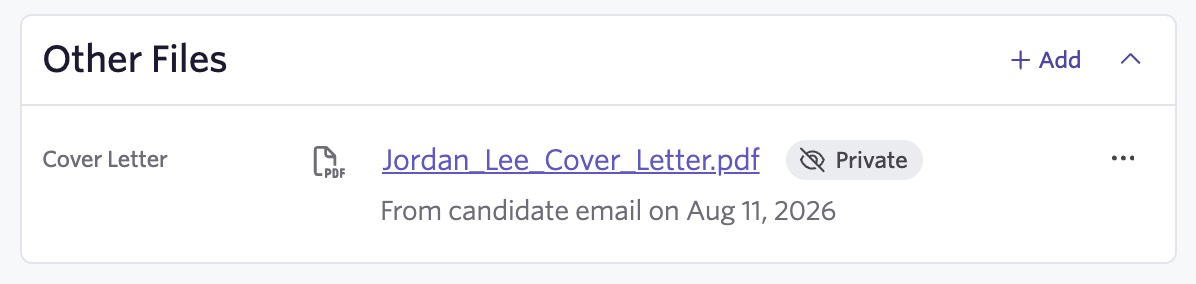
Manage file privacy separately from the email
Once an attachment is saved to Other Files, its privacy is managed independently from the source email. For example, you can keep an email private while making the candidate’s resume visible to everyone who can access their profile.
Saved files also remain available independently of the original email. If an email is deleted, any attachments that haven’t been saved are deleted with it. Attachments already saved to Other Files remain on the candidate’s profile.
Getting started
This is available to all customers with no configuration required for candidate emails synced from Gmail or Microsoft 365.
Open any candidate’s email feed to see attachments as new emails come in. To keep an attachment on the candidate’s profile, use the Save to candidate's files action to add it to Other Files.
To learn more, visit the help center for articles on our Google Workspace integration and Microsoft 365 integration.